
Fleet Settings
The Fleet Settings page controls how NexusRMS calculates mileage costs, manages vehicle compliance deadlines, and integrates transport charges into your quotes. These settings apply to all vehicles in your fleet by default, though individual vehicles can override specific values from their own profile page.
Navigate to Configuration > Fleet to access these settings. The page is organised into three tabs: Mileage Pricing, Compliance Alerts, and Quote Integration.
Mileage Pricing tab
This tab controls how NexusRMS calculates distance-based costs for deliveries, collections, and transport logistics.
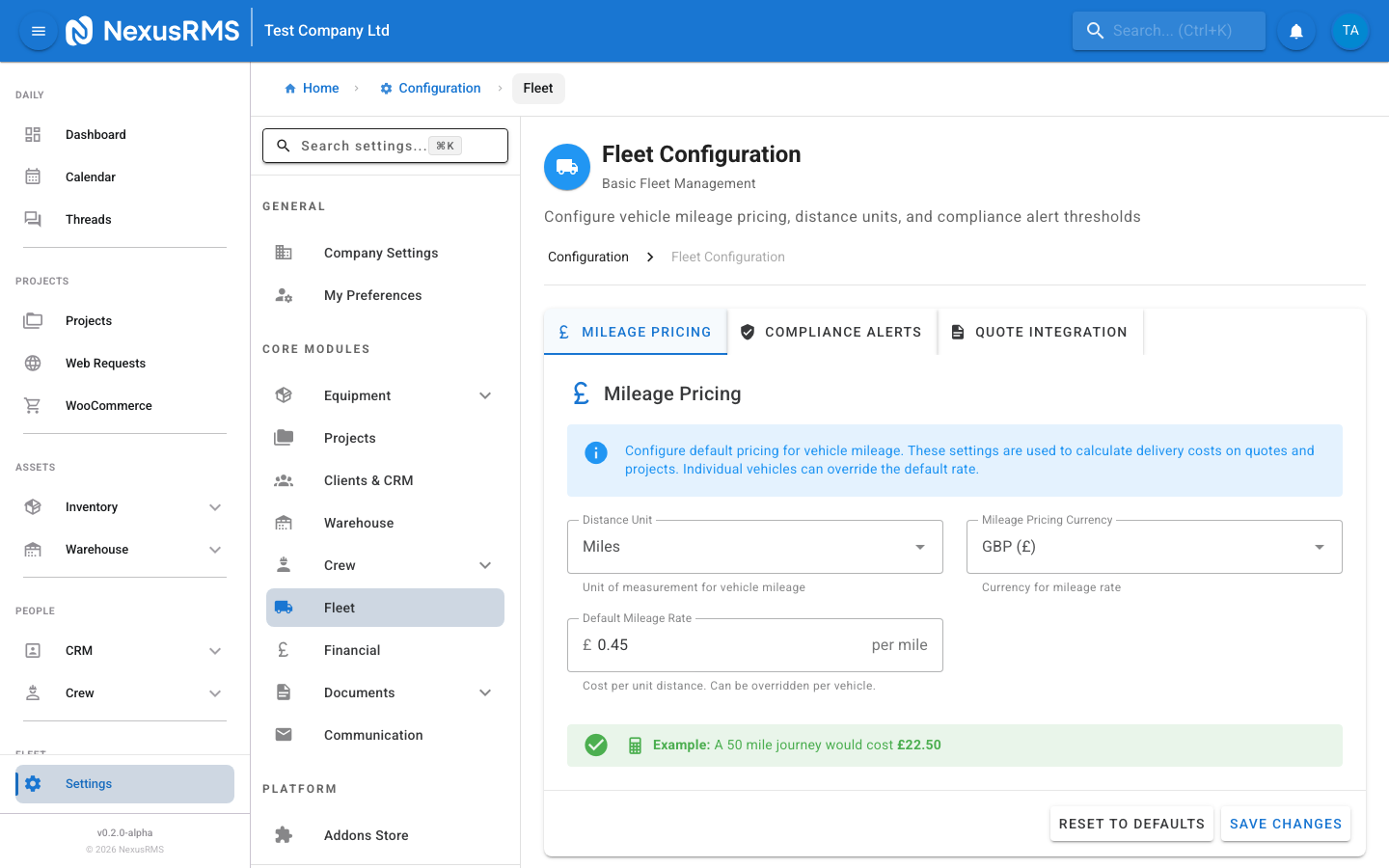
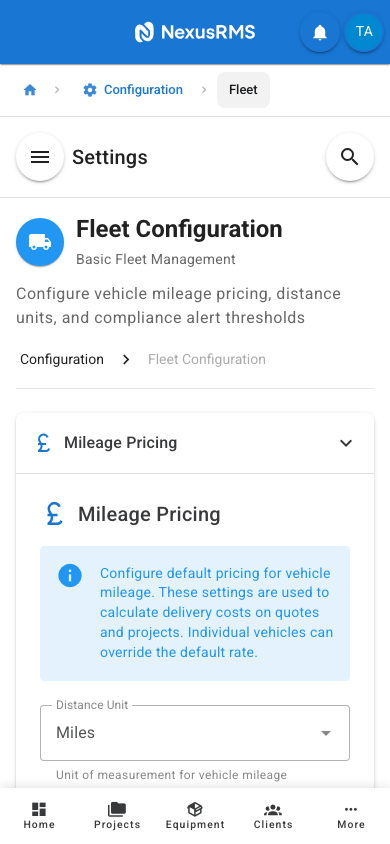
Distance Unit
Distance Unit — Select whether your fleet operates in Miles or Kilometres. This unit is used across all mileage calculations, reports, and quote line items. Changing this setting does not retroactively convert existing records; it only affects new entries going forward. Default: Miles.
Default Mileage Rate
Default Mileage Rate — The cost charged per mile or kilometre for deliveries and collections. This rate is used when calculating transport charges on quotes unless a specific vehicle has its own rate configured. Enter the value as a decimal (e.g., 1.50). Default: 1.00.
Currency
Currency — The currency used for all fleet-related costs, including mileage charges, fuel costs, and maintenance expenses. This defaults to your company's primary currency set in General Settings but can be overridden here if your fleet operates in a different currency region. Default: Inherited from General Settings.
Auto-calculate mileage on quotes
Auto-calculate mileage on quotes — When enabled, NexusRMS automatically calculates and adds a mileage line item to quotes based on the distance between your warehouse and the project delivery address. Uses Google Maps API for distance calculation. When disabled, mileage must be added manually to quotes. Default: Enabled.
Round-trip calculation
Round-trip calculation — When enabled, mileage calculations automatically double the one-way distance to account for both the delivery and collection journeys. When disabled, only the one-way distance is calculated and you must manually add collection mileage if needed. Default: Enabled.
Note: The mileage rate and distance unit configured here are defaults. Individual vehicles can override these values from their vehicle profile page under Fleet > Vehicles > [Vehicle] > Pricing. Vehicle-level overrides take priority when that specific vehicle is assigned to a delivery.
Compliance Alerts tab
This tab configures how far in advance NexusRMS warns you about upcoming vehicle compliance deadlines. Keeping vehicles compliant with MOT, insurance, road tax, and servicing requirements is critical for legal operation and safety.
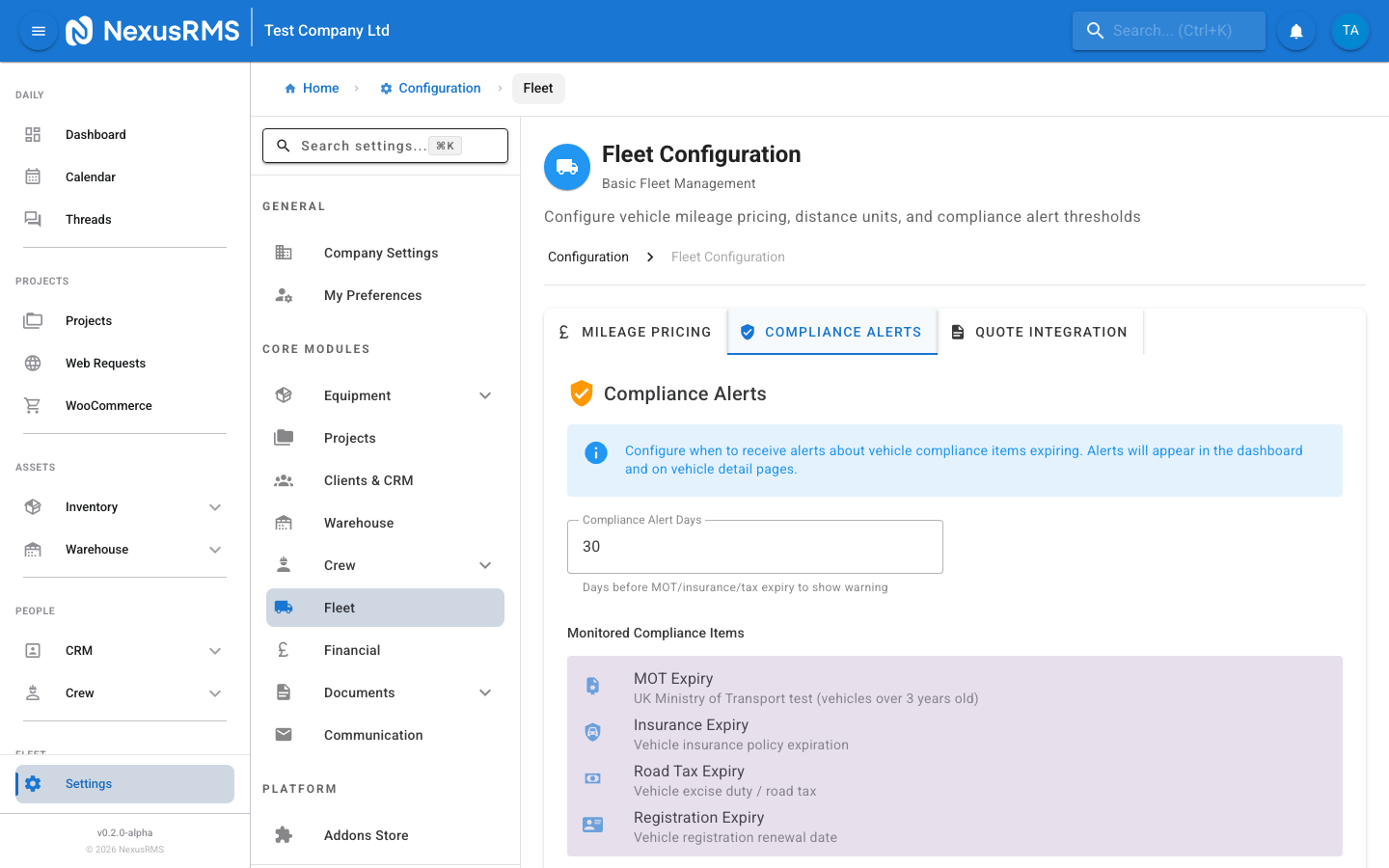
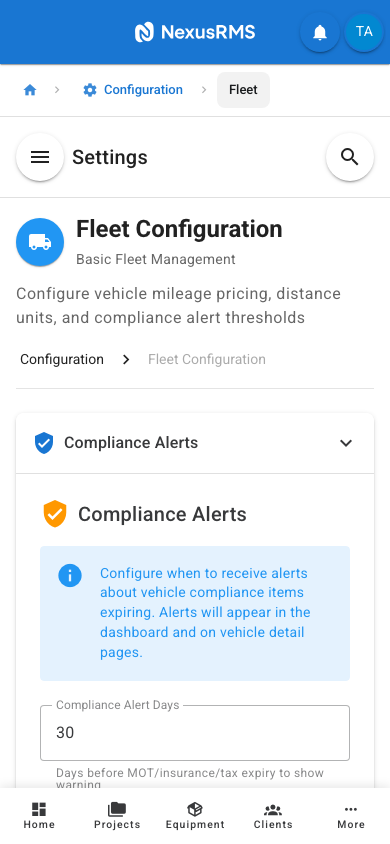
Days before MOT expiry alert
Days before MOT expiry alert — The number of days before a vehicle's MOT expiry date that NexusRMS starts showing warnings. The alert appears on the vehicle profile, the fleet overview, and optionally on the dashboard. Default: 30 days.
Days before insurance expiry alert
Days before insurance expiry alert — The number of days before a vehicle's insurance policy expiry date that warnings begin. Fleet vehicles without valid insurance cannot legally operate on public roads. Default: 30 days.
Days before road tax expiry alert
Days before road tax expiry alert — The number of days before a vehicle's road tax expires that alerts are triggered. Default: 30 days.
Days before service due alert
Days before service due alert — The number of days before a vehicle's next scheduled service date that reminders appear. Regular servicing helps prevent breakdowns during critical delivery windows. Default: 14 days.
Email compliance alerts
Email compliance alerts — When enabled, NexusRMS sends email notifications to CoreAdmins and CoreManagers when a vehicle enters the warning period for any compliance deadline. Emails are sent once when the threshold is first crossed and again on the day of expiry. Default: Enabled.
Dashboard compliance widget
Dashboard compliance widget — When enabled, a fleet compliance summary widget is available in the dashboard widget library. The widget shows the count of vehicles with upcoming or overdue compliance items, colour-coded by urgency (green, amber, red). Default: Enabled.
Quote Integration tab
This tab controls how fleet and transport costs appear on client-facing quotes and documents.
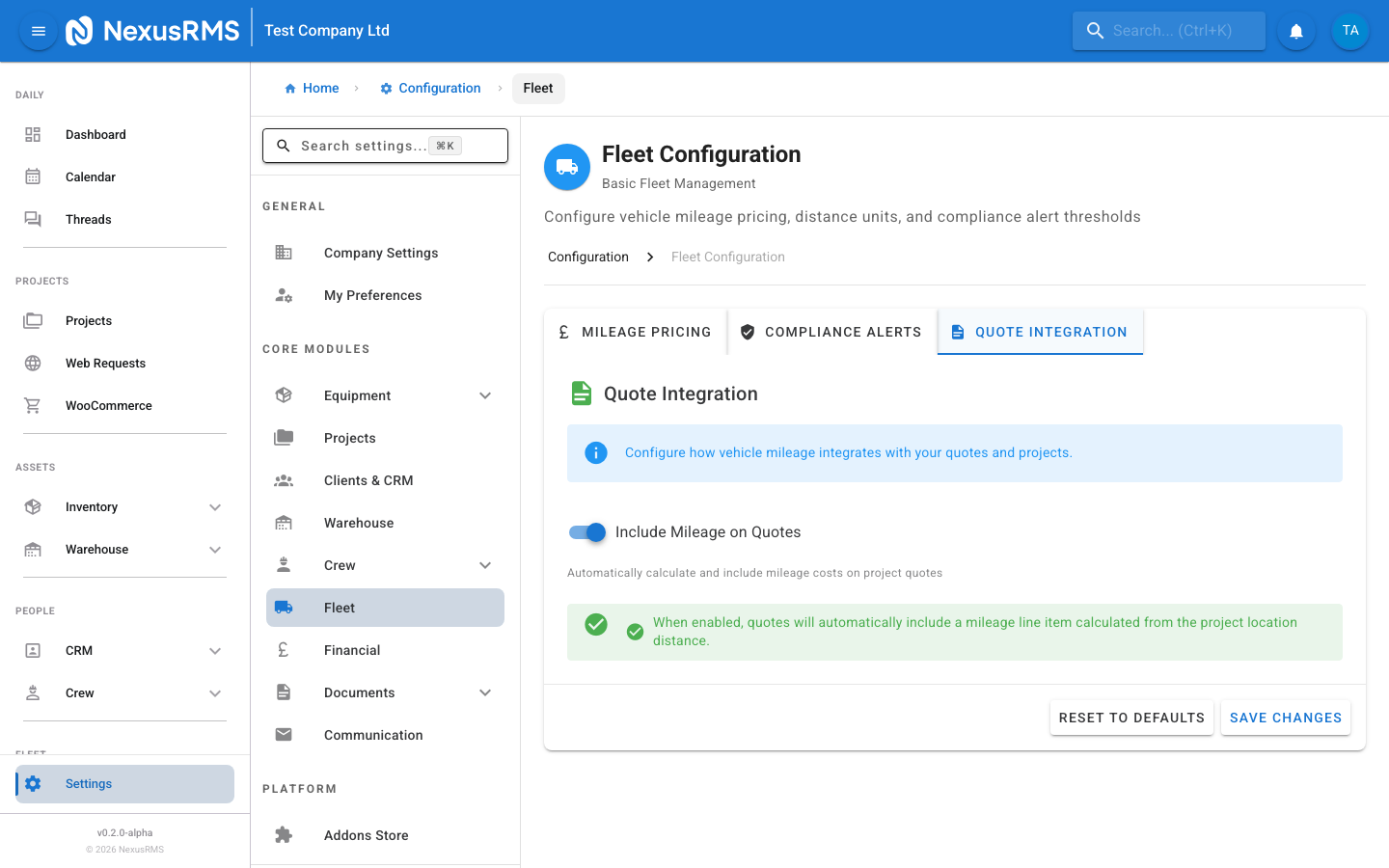
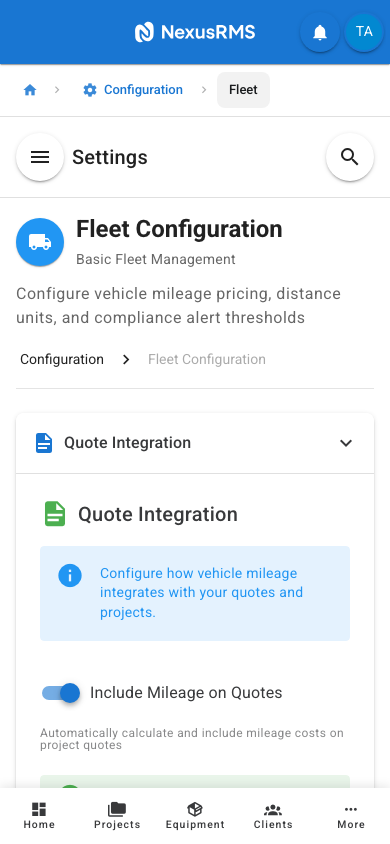
Include mileage breakdown on quotes
Include mileage breakdown on quotes — When enabled, quotes display a detailed mileage breakdown showing the distance, rate per mile/km, and total mileage charge as separate line items. When disabled, transport costs appear as a single lump-sum line item without distance details. Default: Enabled.
Show distance calculation on quotes
Show distance calculation on quotes — When enabled, the quote shows the calculated distance between your warehouse and the delivery address (e.g., "42 miles from London Warehouse to Event Venue"). When disabled, only the monetary value is shown. Default: Disabled.
Default delivery charge calculation method
Default delivery charge calculation method — Choose how delivery charges are calculated by default on new quotes:
- Per-mile/km rate — Multiplies the distance by the mileage rate. Best for companies where delivery distances vary significantly.
- Fixed charge — Applies the minimum delivery charge regardless of distance. Best for companies with a standard delivery zone.
- Tiered — Uses distance bands with different rates (e.g., 0–20 miles at one rate, 21–50 miles at another). Tiers are configured in Fleet > Pricing Tiers.
- Manual — No automatic calculation. Delivery charges must be entered manually on each quote.
Default: Per-mile/km rate.
Minimum delivery charge
Minimum delivery charge — The minimum amount charged for any delivery, regardless of distance. If the calculated mileage charge is below this threshold, the minimum charge is applied instead. Set to 0 to disable the minimum. Default: 0.00.
Tips and best practices
Setting up fleet for the first time
- Start with the Mileage Pricing tab — Configure your distance unit and default mileage rate before adding any vehicles. This ensures all vehicles inherit sensible defaults.
- Set compliance alert thresholds generously — 30 days is a good starting point. This gives you enough lead time to book MOTs, renew insurance, and schedule services without last-minute pressure.
- Enable round-trip calculation — Most rental deliveries require both a delivery and a collection journey. Forgetting to charge for the return trip is a common source of lost revenue.
- Add all vehicles with their compliance dates — Even if you do not plan to use fleet scheduling immediately, having compliance dates in the system means you will be warned before anything expires.
When to adjust mileage rates
- Fuel price changes — Review your mileage rate quarterly or whenever fuel prices change significantly. An outdated rate can quietly erode your margins on every delivery.
- Vehicle-specific overrides — If you operate a mix of vans and trucks, set vehicle-level rates rather than changing the global default. A 7.5-tonne truck costs more per mile than a Transit van.
- Seasonal adjustments — During peak season when fuel demand is higher, consider a temporary rate increase.
Compliance alert best practices
- Stagger your compliance dates — If possible, avoid having all vehicles' MOTs and insurance renewals fall in the same month. Staggering reduces administrative burden and cash flow spikes.
- Enable email alerts — Dashboard widgets are useful, but emails ensure compliance deadlines are not missed when staff are busy in the field.
- Increase thresholds for insurance — Insurance renewal often requires quotes from multiple providers. Consider setting the insurance alert to 45 or 60 days to allow time for comparison shopping.
- Check the compliance widget weekly — Make reviewing the fleet compliance widget part of your weekly routine, even if email alerts are enabled.
Next steps
Continue to the next article to learn about Documents & Templates settings, where you will configure email templates, PDF document layouts, contract templates, label formats, and letterhead designs.
Was this article helpful?