
Dashboard Settings
The Dashboard Settings page controls how dashboards behave across your NexusRMS tenant. From auto-refresh intervals to widget management and sharing permissions, every aspect of the dashboard experience is configured here. Navigate to Settings > Dashboards to access these options.
General tab
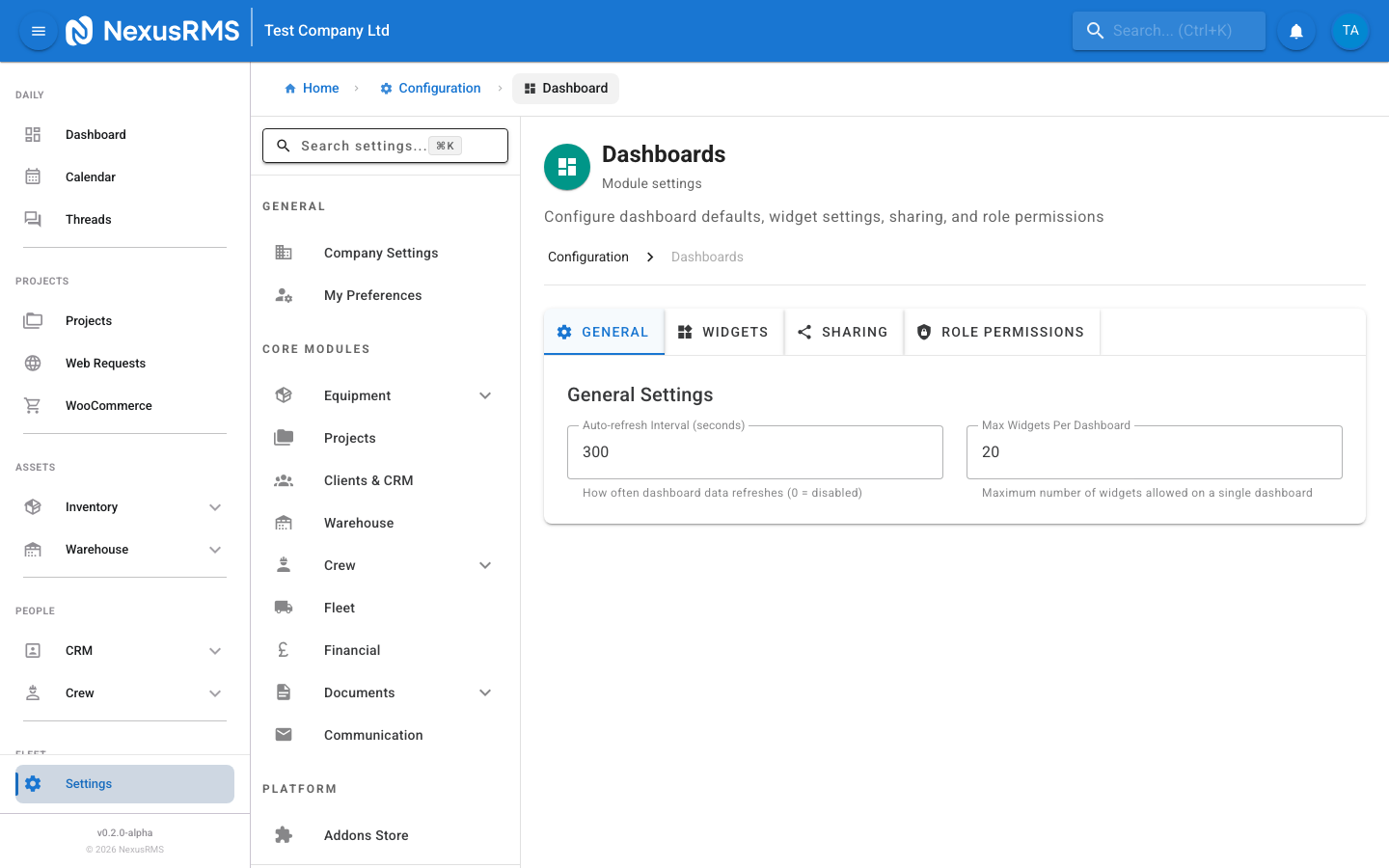
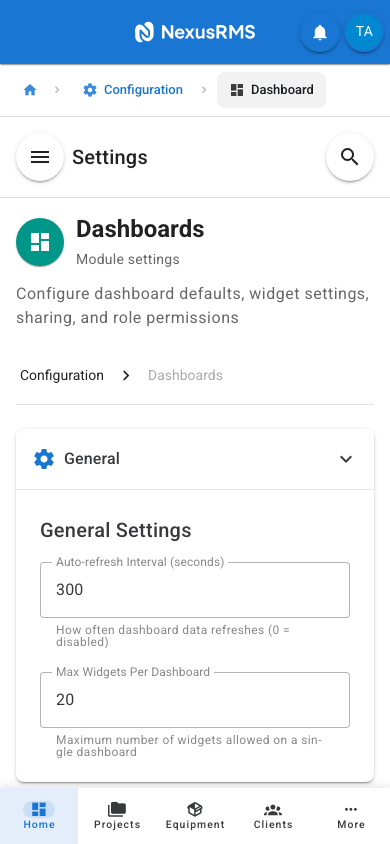
The General tab sets the core dashboard behaviour including refresh intervals, widget limits, and default configurations for new users.
Auto-Refresh
- Auto-Refresh Interval — The number of seconds between automatic dashboard data refreshes. When set to 0, auto-refresh is disabled and users must manually refresh. Lower values provide more real-time data but increase server load. Options: 0 (Disabled), 15 seconds, 30 seconds, 60 seconds, 120 seconds, 300 seconds. Default: 60 seconds.
- Refresh on Tab Focus — When enabled, the dashboard automatically refreshes when the user switches back to the NexusRMS browser tab. This ensures data is always current when the user is actively viewing the dashboard, even if auto-refresh is disabled. Default: Enabled.
- Show Last Updated Timestamp — When enabled, each widget displays a small timestamp showing when its data was last refreshed. Default: Enabled.
Widget Limits
- Max Widgets Per Dashboard — The maximum number of widgets that can be placed on a single dashboard. Higher limits allow more comprehensive dashboards but may impact page load performance. Options: 6, 12, 18, 24, 36. Default: 24.
- Max Dashboards Per User — The maximum number of personal dashboards each user can create. Set to 0 for unlimited. Default: 10.
Default Dashboard
- Default Dashboard for New Users — Select the dashboard that new users see when they first log in. You can choose from any shared or team dashboard. If no default is set, new users see a blank dashboard with a prompt to add widgets. Default: System Default Dashboard.
- Allow Users to Change Default — When enabled, users can set any of their personal or shared dashboards as their personal default. When disabled, all users always see the admin-configured default. Default: Enabled.
- Allow Users to Create Personal Dashboards — When enabled, users can create their own personal dashboards in addition to any shared team dashboards. When disabled, users can only view dashboards created and shared by admins. Default: Enabled.
Layout
- Default Layout Columns — The number of columns in the dashboard grid. Options: 2, 3, 4, 6. More columns allow finer positioning but may look cramped on smaller screens. Default: 4.
- Enable Drag-and-Drop — When enabled, users can rearrange widgets by dragging them to new positions. When disabled, widget positions are fixed as configured by the dashboard creator. Default: Enabled.
- Enable Widget Resizing — When enabled, users can resize widgets within the grid. When disabled, all widgets use their default size. Default: Enabled.
- Compact Layout — When enabled, widgets automatically move up to fill empty spaces in the grid, keeping the layout tight. When disabled, widgets remain in their placed position even if there are gaps above them. Default: Enabled.
Widgets tab
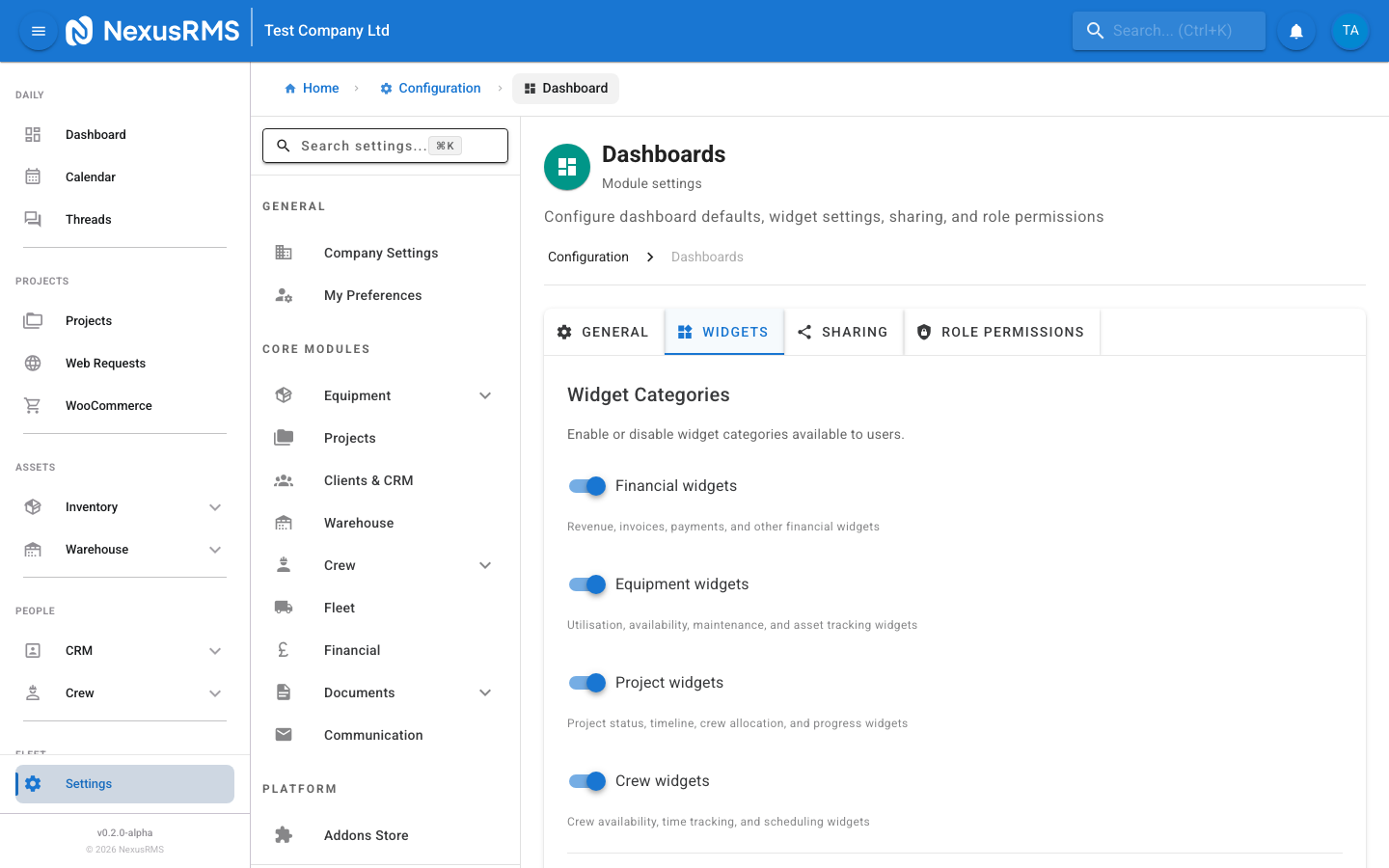
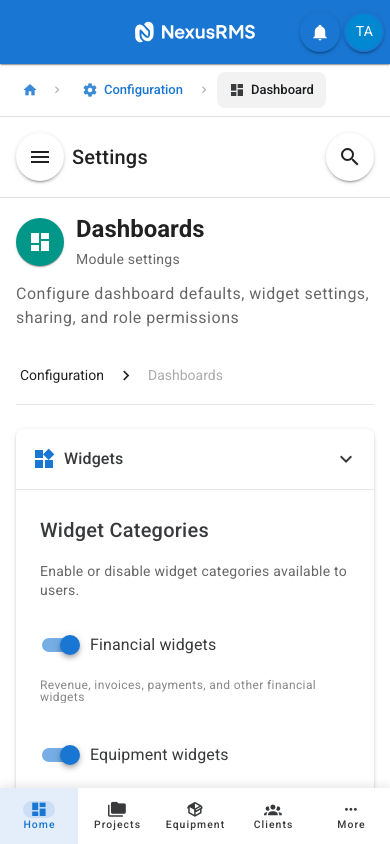
The Widgets tab manages the widget catalogue, configures per-widget settings, and controls custom widget creation.
Widget Catalogue
The widget catalogue lists all available widgets organised by module. Each widget has configuration options:
- Enable/Disable Widgets — Toggle individual widgets on or off for the entire tenant. Disabled widgets are removed from the "Add Widget" menu and from any dashboards where they are currently placed. Default: All widgets enabled.
- Widget Categories — Widgets are grouped into categories for easy browsing: Equipment, Projects, Financial, Crew, Warehouse, Clients, Analytics, System.
Widget Size and Position Constraints
- Default Widget Size — The default size for newly added widgets, measured in grid columns and rows. Options vary per widget type (e.g., a chart might default to 2x2, while a quick stat defaults to 1x1). These defaults are pre-configured per widget and can be adjusted here.
- Minimum Widget Size — The smallest size a widget can be resized to. Prevents widgets from being shrunk to the point where content is unreadable. Default: 1x1 grid unit.
- Maximum Widget Size — The largest size a widget can be expanded to. Prevents a single widget from consuming the entire dashboard. Default: Full width x 4 rows.
Data Refresh Intervals Per Widget
- Per-Widget Refresh Override — When enabled, individual widgets can have their own refresh interval that overrides the global auto-refresh setting. For example, a real-time project status widget might refresh every 15 seconds while a monthly revenue chart refreshes every 5 minutes. Default: Disabled.
- Real-Time Widgets — Widgets that use WebSocket connections for instant updates (e.g., active check-outs, live crew locations). These update in real-time regardless of the refresh interval. Default: Enabled where available.
Custom Widget Creation
- Enable Custom Widgets — When enabled, authorised users can create custom widgets using the widget builder. Custom widgets can display data from any module using configurable queries and visualisation types. Default: Enabled.
- Custom Widget Visualisation Types — The chart and display types available for custom widgets: Number/Stat, Bar Chart, Line Chart, Pie Chart, Doughnut Chart, Table, List, Heatmap. Default: All types available.
- Maximum Custom Widgets — The maximum number of custom widgets that can be created across the tenant. Default: 50.
- Allow Custom Widget Sharing — When enabled, custom widgets created by one user can be made available in the widget catalogue for all users. Default: Enabled.
Sharing tab
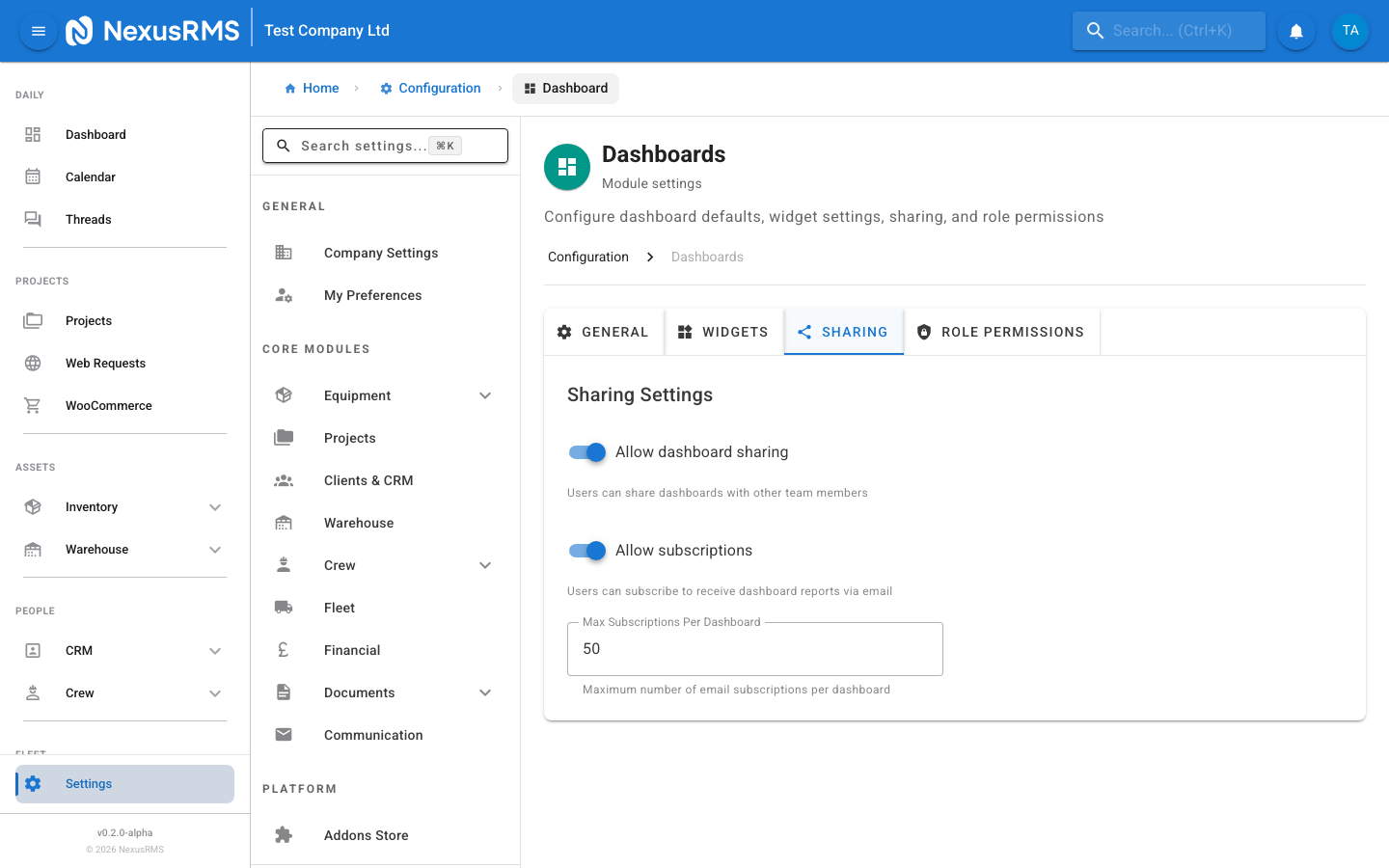
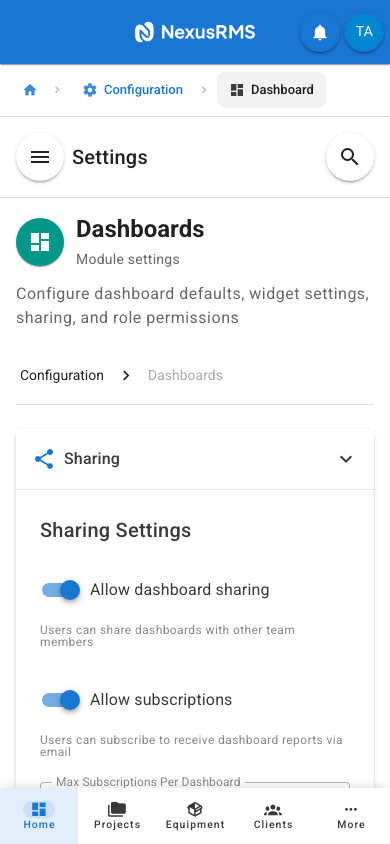
The Sharing tab controls how dashboards are shared between users, teams, and optionally via public links.
Dashboard Sharing Between Users
- Enable Dashboard Sharing — Master toggle for the dashboard sharing system. When enabled, users can share their personal dashboards with other team members. When disabled, dashboards are strictly personal. Default: Enabled.
- Sharing Mode — How shared dashboards work for recipients: View Only (recipients can view but not modify), Clone (recipients get a copy they can customise), or Collaborative (recipients can edit the shared dashboard). Default: View Only.
- Share with Specific Users — When enabled, dashboards can be shared with individual users by name. Default: Enabled.
- Share with Roles — When enabled, dashboards can be shared with entire roles (e.g., share a "Warehouse Overview" dashboard with all Warehouse Staff). Default: Enabled.
Team Dashboards
- Enable Team Dashboards — When enabled, CoreAdmins and CoreManagers can create team dashboards that are automatically visible to all members of a specified role or the entire company. Team dashboards cannot be deleted by regular users. Default: Enabled.
- Pin Team Dashboards — When enabled, team dashboards appear pinned at the top of every user's dashboard list, above their personal dashboards. Default: Enabled.
- Lock Team Dashboard Layout — When enabled, users cannot rearrange or resize widgets on team dashboards. They can only view the layout as configured by the admin. Default: Enabled.
Public Dashboard Links
- Enable Public Dashboard Links — When enabled, dashboards can be made accessible via a public URL without requiring a NexusRMS login. Useful for display screens in offices, client-facing status boards, or stakeholder reporting. Default: Disabled.
- Public Link Expiry — The default expiry duration for public dashboard links: 24 hours, 7 days, 30 days, 90 days, Never. Default: 30 days.
- Public Link Password Protection — When enabled, public dashboard links require a password to access. The password is set when the link is created. Default: Disabled.
- Exclude Financial Data from Public — When enabled, any widgets displaying financial data are automatically hidden on publicly shared dashboards. This prevents accidental exposure of sensitive financial information. Default: Enabled.
Role Permissions tab
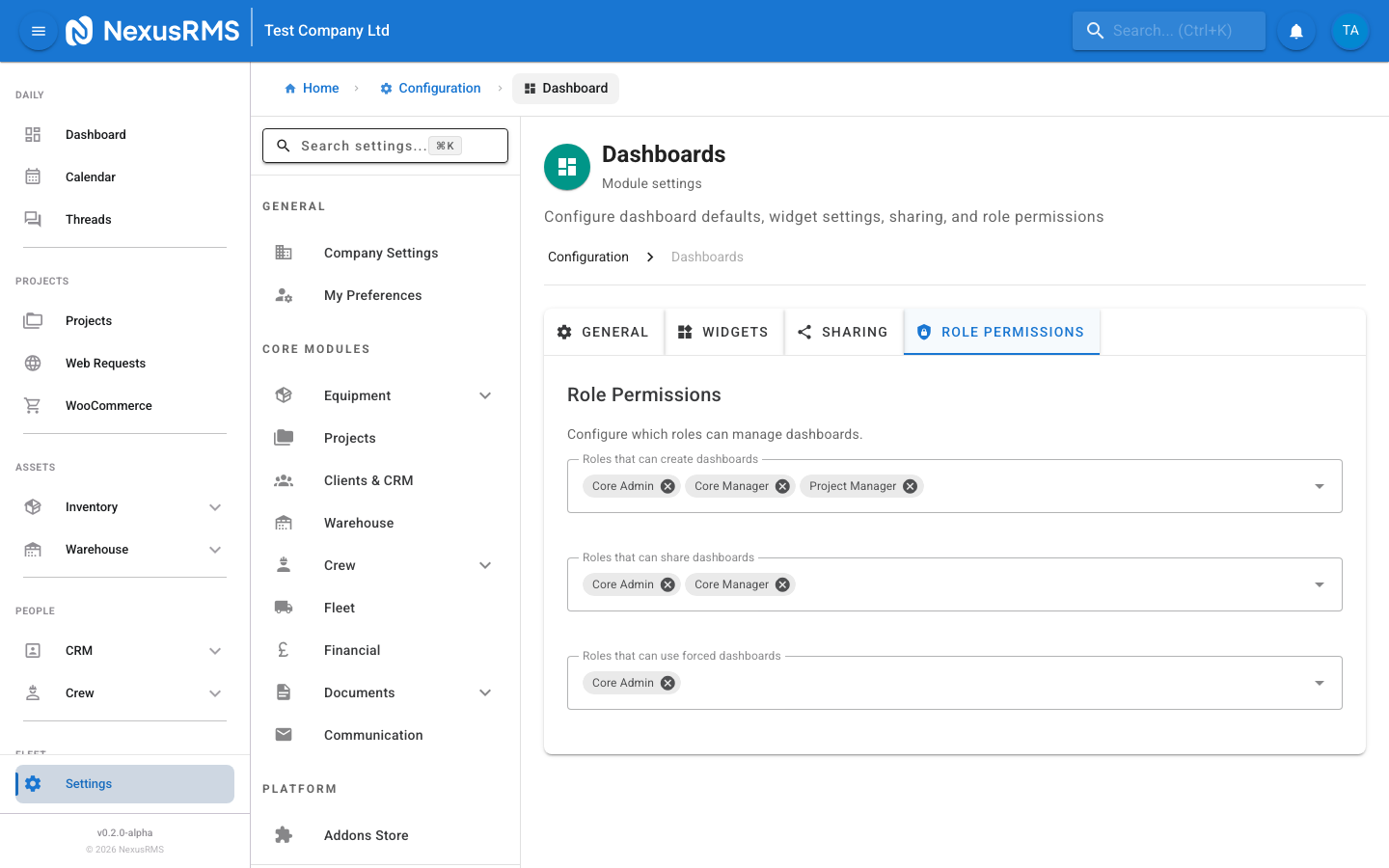
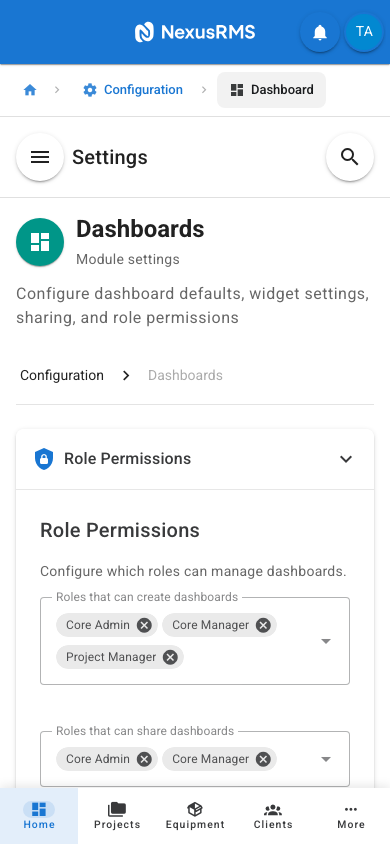
The Role Permissions tab controls which user roles can create, edit, share, and manage dashboards, as well as access to specific widget types.
Dashboard Management Permissions
- Create Dashboards — Which roles can create new personal dashboards. Default: CoreAdmin, CoreManager, Project Manager.
- Edit Dashboards — Which roles can modify dashboard layout, add or remove widgets, and change widget settings. Default: CoreAdmin, CoreManager, Project Manager.
- Delete Dashboards — Which roles can delete dashboards. Users can always delete their own personal dashboards. This permission controls deletion of shared and team dashboards. Default: CoreAdmin only.
- Create Team Dashboards — Which roles can create team dashboards that are visible to all users or specific roles. Default: CoreAdmin, CoreManager.
- Share Dashboards — Which roles can share their personal dashboards with other users or roles. Default: CoreAdmin, CoreManager, Project Manager.
- Create Public Links — Which roles can generate public dashboard links (when the feature is enabled). Due to the sensitive nature of sharing data externally, this should be restricted. Default: CoreAdmin only.
Widget Access Restrictions
- Financial Widgets — Which roles can add and view financial widgets (Revenue, Profit, Invoice Totals, Cash Flow, etc.). Users without this permission see a "Restricted" placeholder if a financial widget appears on a shared dashboard. Default: CoreAdmin, CoreManager.
- Crew Widgets — Which roles can add and view crew-related widgets (Utilisation, Attendance, Pay Summary). Default: CoreAdmin, CoreManager.
- Equipment Widgets — Which roles can add and view equipment widgets (Availability, Utilisation, Maintenance Due). Default: CoreAdmin, CoreManager, Warehouse Staff, Project Manager.
- Project Widgets — Which roles can add and view project widgets (Pipeline, Status Board, Timeline). Default: CoreAdmin, CoreManager, Project Manager.
- Warehouse Widgets — Which roles can add and view warehouse widgets (Stock Levels, Check-Out Activity, Overdue Returns). Default: CoreAdmin, CoreManager, Warehouse Staff.
- System Widgets — Which roles can add and view system widgets (API Usage, Storage, Active Users, Audit Log). These display administrative data and should be restricted. Default: CoreAdmin only.
Admin-Only Widgets
- Admin-Only Widget List — Specific widgets that are restricted to CoreAdmins regardless of category-level permissions. This is a secondary restriction for particularly sensitive widgets. Examples include: Profit Margin Overview, Staff Cost Summary, Subscription Usage, API Key Activity. Default: Profit Margin Overview, Staff Cost Summary, Subscription Usage, API Key Activity.
- Allow CoreManagers Admin Widgets — A quick toggle to grant CoreManagers access to admin-only widgets. When enabled, the admin-only restriction applies only to roles below CoreManager. Default: Disabled.
Tips and best practices
- Set the auto-refresh interval to 60 seconds for most teams. This provides near-real-time data without creating unnecessary server load. Only reduce it to 15 seconds if you have a dedicated wall-mounted display that needs constant updates.
- Create a default team dashboard before inviting users. A well-configured default dashboard gives new team members an immediate overview of key metrics without requiring them to build their own.
- Use the "Lock Team Dashboard Layout" option to prevent accidental changes to shared dashboards. Users can still create personal dashboards for their own preferences.
- Enable the "Exclude Financial Data from Public" option if you use public dashboard links. It is easy to forget that a revenue widget is on a dashboard before sharing the link externally.
- Limit the maximum widgets per dashboard to 24 or fewer. Dashboards with too many widgets become slow to load and difficult to read. Encourage users to create multiple focused dashboards rather than one overloaded view.
- Review widget access restrictions when new roles are created. The default permissions are conservative and may need to be expanded for roles that require broader visibility.
Was this article helpful?