
Analytics & Reports Settings
The Analytics and Reports Settings page controls how your reporting tools behave, including default date ranges, scheduled reports, KPI alerts, and access permissions. Navigate to Settings > Analytics to access these options.
General tab
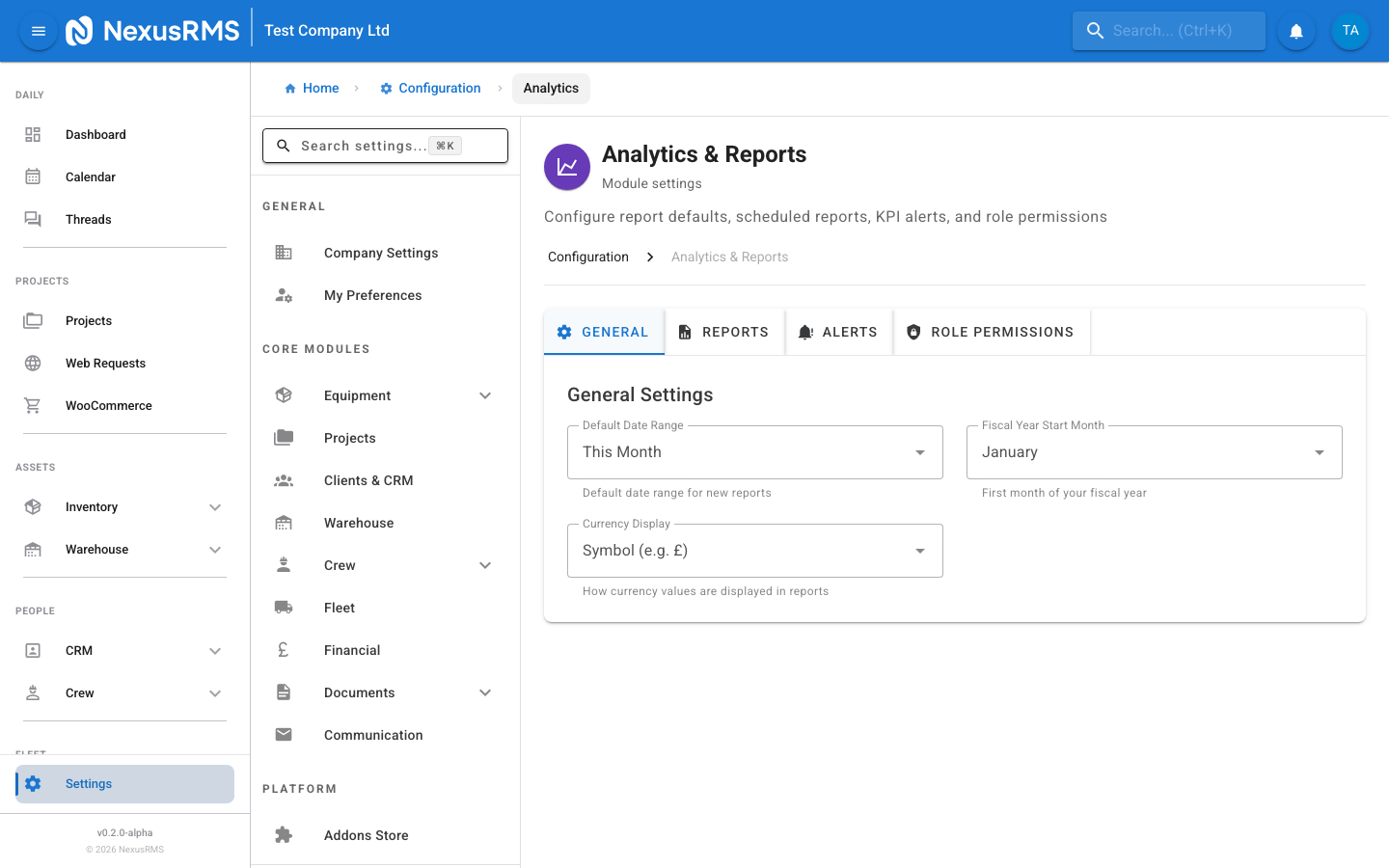
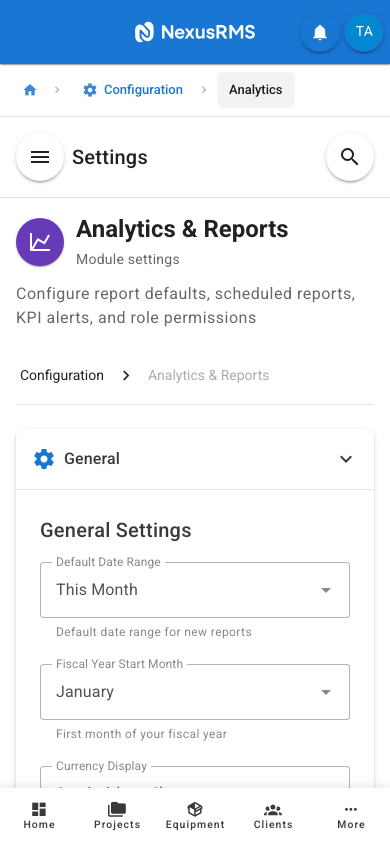
The General tab sets the foundational parameters for all analytics and reporting across your NexusRMS tenant.
Date Range Defaults
- Default Date Range — The date range that is pre-selected when opening any report or dashboard widget. Options: Last 7 Days, Last 14 Days, Last 30 Days, Last 90 Days, This Month, Last Month, This Quarter, Last Quarter, This Year, Last Year. Users can always change the range on individual reports. Default: Last 30 Days.
- Comparison Period — When reports show comparison data (e.g., "vs previous period"), this setting determines the comparison range: Previous Period (same length as selected range, immediately before), Same Period Last Year, or None. Default: Previous Period.
Fiscal Year
- Fiscal Year Start Month — The month your fiscal year begins. All reports that group by fiscal year, fiscal quarter, or fiscal month use this setting. Options: January through December. Default: January.
- Fiscal Year Label Format — How fiscal years are labelled in reports: Start Year (FY2025), End Year (FY2026), or Range (FY2025-2026). Default: Start Year.
Currency and Formatting
- Default Currency for Reports — The currency used when displaying financial figures in reports. If your tenant operates with multiple currencies, figures are converted to this currency using the stored exchange rate at the time of the transaction. Default: GBP.
- Number Format — The format for displaying numbers in reports: 1,234.56 (UK/US), 1.234,56 (EU), or 1 234,56 (FR). Default: 1,234.56.
- Decimal Places — The number of decimal places shown for financial values in reports. Options: 0, 2, 3. Default: 2.
Data Retention
- Data Retention Period — How long analytics data is retained. Older data is archived and may take longer to query but is not deleted. Options: 1 Year, 2 Years, 5 Years, 10 Years, Indefinite. Default: Indefinite.
- Pre-Aggregate Historical Data — When enabled, data older than the specified threshold is pre-aggregated (rolled up into daily/weekly/monthly summaries) for faster report generation. Individual transaction detail is preserved in the source modules. Default: Enabled.
- Aggregation Threshold — Data older than this many months is pre-aggregated. Default: 12 months.
Reports tab
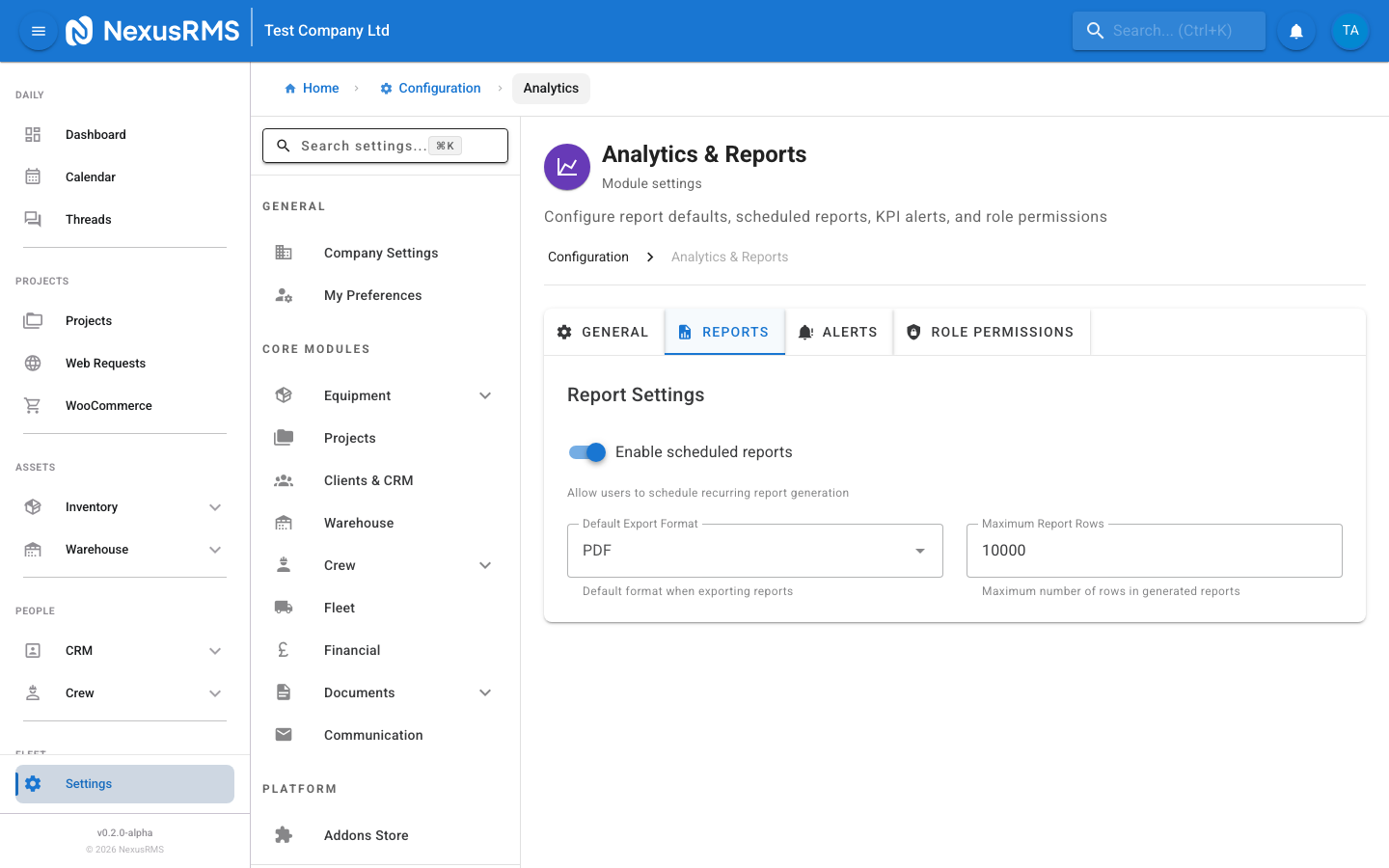
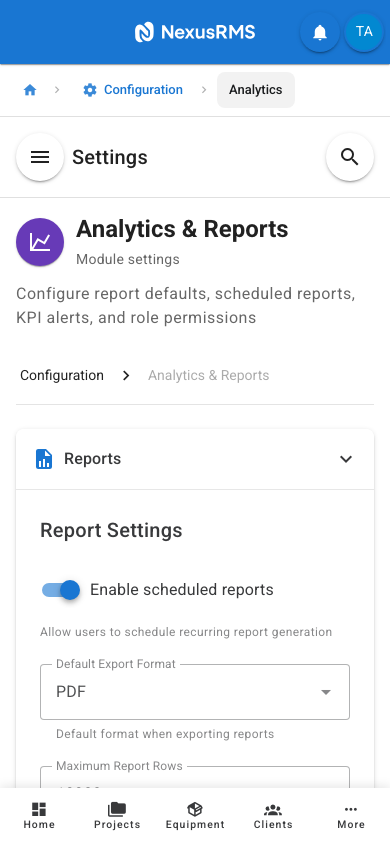
The Reports tab configures scheduled reports, export settings, and the custom report builder.
Scheduled Reports
- Enable Scheduled Reports — Master toggle for the report scheduling system. When enabled, reports can be configured to run automatically and be delivered via email. Default: Enabled.
- Maximum Scheduled Reports — The maximum number of scheduled reports that can be active at one time. This prevents excessive server load from too many concurrent report jobs. Default: 20.
- Schedule Frequency Options — The frequency options available when creating a scheduled report: Daily, Weekly, Bi-Weekly, Monthly, Quarterly. All options are available by default.
- Default Delivery Time — The time of day scheduled reports are generated and delivered. Default: 07:00.
- Auto-Email Reports — When enabled, scheduled reports are automatically emailed to the configured recipients. When disabled, reports are generated and stored in the Reports section but not emailed. Default: Enabled.
Export Settings
- Available Export Formats — Select which export formats are available to users: PDF, CSV, Excel (XLSX). At least one format must be enabled. Default: All enabled.
- Default Export Format — The pre-selected format when a user clicks "Export". Default: PDF.
- Include Company Branding on PDF — When enabled, PDF exports include your company logo, name, and address in the header. Default: Enabled.
- PDF Page Orientation — Default page orientation for PDF exports: Portrait or Landscape. Default: Landscape.
- CSV Delimiter — The delimiter character for CSV exports: Comma (,), Semicolon (;), Tab. Default: Comma.
- Include Headers in CSV — When enabled, the first row of CSV exports contains column headers. Default: Enabled.
Report Sharing
- Allow Report Sharing — When enabled, users can share saved reports with other team members. Shared reports appear in the recipient's Reports section. Default: Enabled.
- Allow Public Report Links — When enabled, users can generate a public URL for a report that can be viewed by anyone with the link, without requiring a NexusRMS login. Public links are read-only and can be set to expire. Default: Disabled.
- Public Link Expiry — The default expiry duration for public report links: 24 hours, 7 days, 30 days, Never. Only visible when public links are enabled. Default: 7 days.
Custom Report Builder
- Enable Custom Report Builder — When enabled, authorised users can create custom reports by selecting data sources, columns, filters, and visualisation types. When disabled, only the pre-built reports are available. Default: Enabled.
- Maximum Custom Reports Per User — The maximum number of custom reports a single user can save. Default: 50.
- Allow Cross-Module Reports — When enabled, custom reports can pull data from multiple modules (e.g., combining equipment utilisation with financial data). Default: Enabled.
Alerts tab
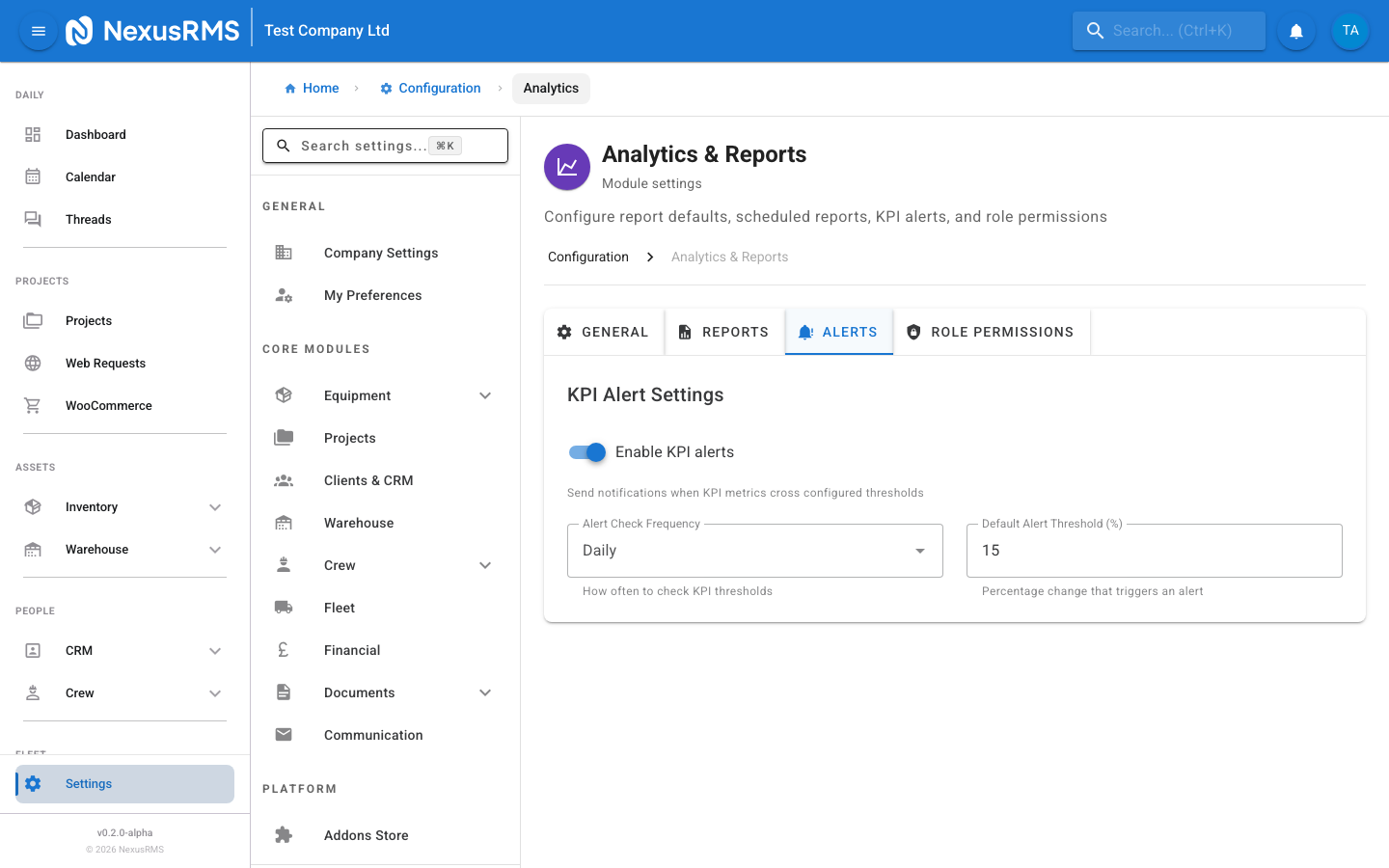
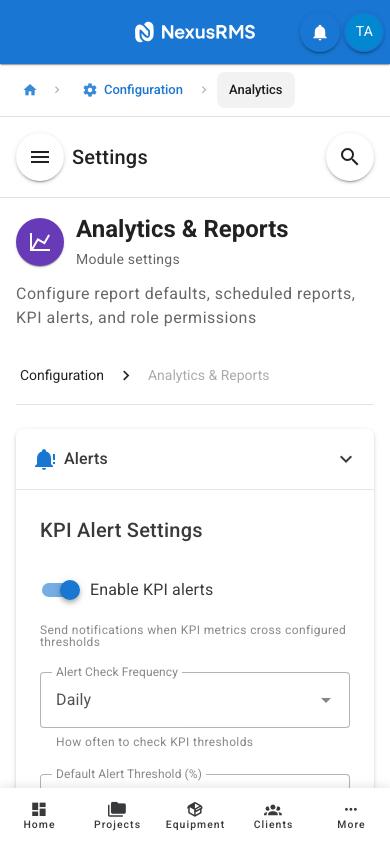
The Alerts tab configures KPI-driven alerts that proactively notify you when key metrics cross defined thresholds.
KPI Alert Thresholds
Configure alert thresholds for key performance indicators. When a KPI crosses its threshold, an alert is triggered.
- Revenue Target — Set a monthly revenue target. An alert is triggered if actual revenue falls below this amount at the defined check-in points (e.g., mid-month). Default: Not set.
- Revenue Pace Alert — Alert when revenue is pacing behind target by a specified percentage at the halfway point of the month. For example, if set to 20%, an alert fires when you are more than 20% behind pace on the 15th. Default: 20%.
- Equipment Utilisation Minimum — Alert when overall equipment utilisation drops below this percentage. Low utilisation may indicate underperforming inventory or pricing issues. Default: Not set.
- Overdue Invoice Amount — Alert when the total outstanding overdue invoice amount exceeds this value. Default: Not set.
- Overdue Invoice Count — Alert when the number of overdue invoices exceeds this count. Default: Not set.
- Average Project Margin — Alert when the average project margin drops below this percentage. Default: Not set.
- Crew Utilisation Minimum — Alert when crew utilisation (percentage of available hours that are scheduled) drops below this value. Default: Not set.
Alert Delivery
- Alert Delivery Method — How KPI alerts are delivered: In-App Only, Email Only, or Both. Default: Both.
- Alert Recipients — Who receives KPI alerts: CoreAdmins Only, CoreAdmins and CoreManagers, or Custom (select specific users). Default: CoreAdmins Only.
Alert Frequency
- Alert Check Frequency — How often the system checks KPI values against thresholds: Hourly, Every 6 Hours, Daily, Weekly. More frequent checks catch issues sooner but may generate more alerts. Default: Daily.
- Suppress Duplicate Alerts — When enabled, if a KPI remains in breach across multiple check intervals, the alert is only sent once until the KPI returns to a healthy state and breaches again. Default: Enabled.
- Cooldown Period — After an alert is sent, wait this many hours before sending the same alert again (even if the KPI is still in breach). Only applies when duplicate suppression is disabled. Default: 24 hours.
Role Permissions tab
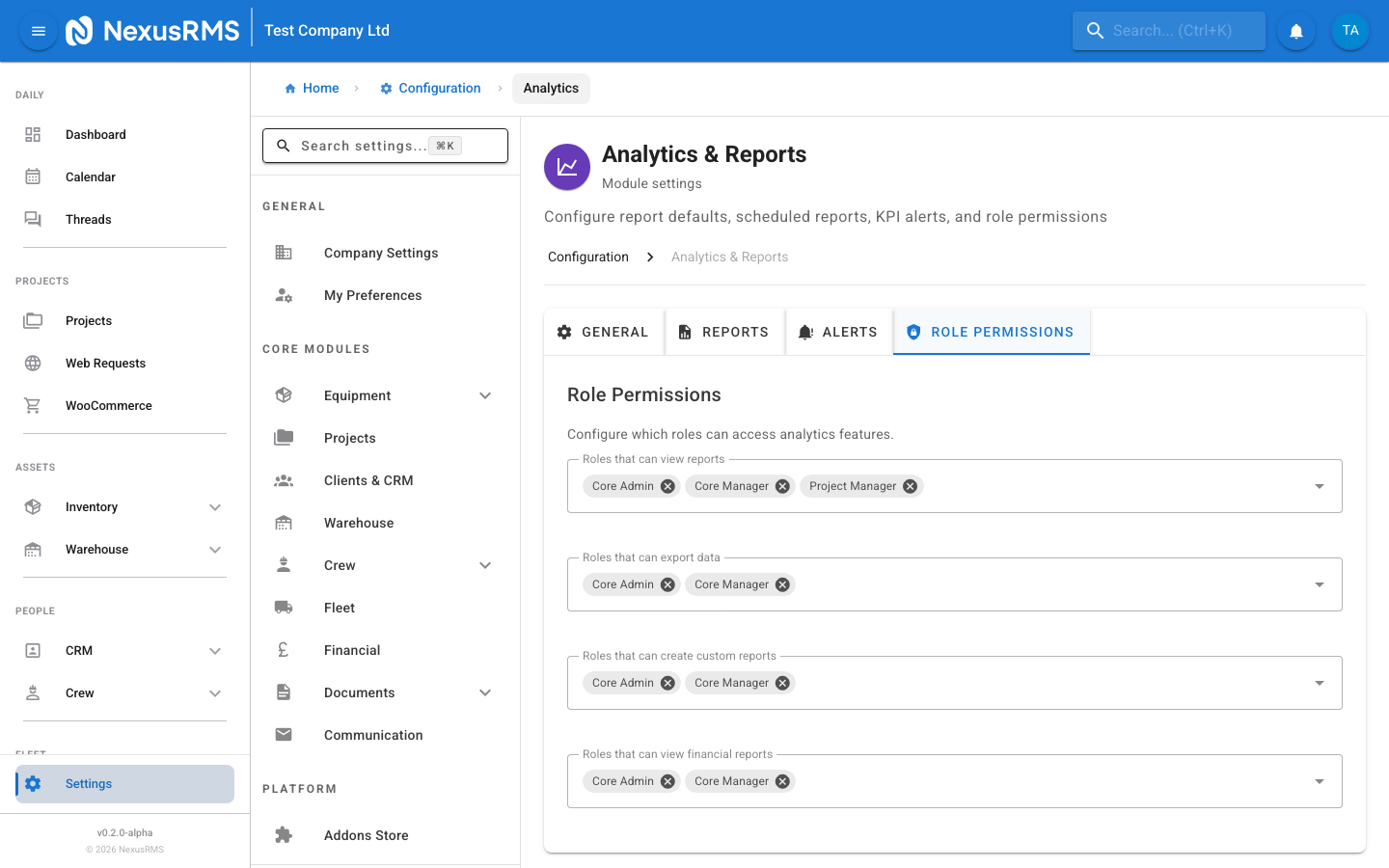
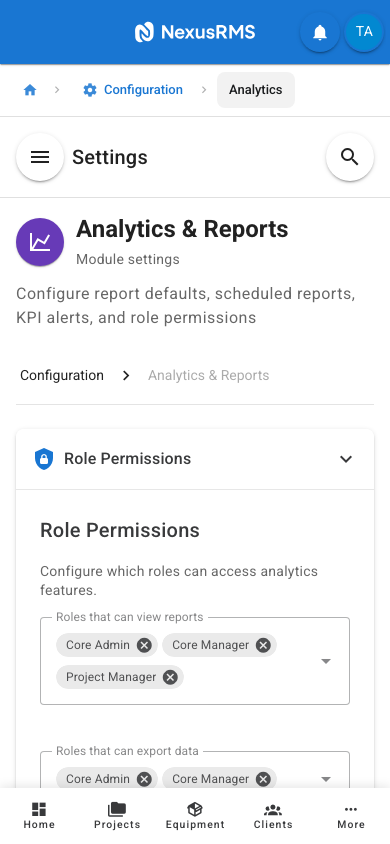
The Role Permissions tab controls which user roles can access reports, export data, and view sensitive financial analytics.
Report Category Access
Control which roles can access each report category. Each category has its own toggle per role.
- Equipment Reports — Utilisation, availability, maintenance history, depreciation. Default: CoreAdmin, CoreManager, Warehouse Staff.
- Project Reports — Project performance, timelines, profitability, completion rates. Default: CoreAdmin, CoreManager, Project Manager.
- Financial Reports — Revenue, invoicing, expenses, profit and loss, cash flow. These contain sensitive financial data and should be restricted. Default: CoreAdmin, CoreManager.
- Crew Reports — Scheduling, time tracking, utilisation, attendance. Default: CoreAdmin, CoreManager.
- Warehouse Reports — Stock levels, check-in/out history, discrepancy reports. Default: CoreAdmin, CoreManager, Warehouse Staff.
- Client Reports — Client activity, revenue per client, project history. Default: CoreAdmin, CoreManager.
Export Permissions
- Can Export Reports — Which roles can export reports to PDF, CSV, or Excel. Exporting allows data to leave NexusRMS, so it may need to be restricted for compliance reasons. Default: CoreAdmin, CoreManager.
- Can Export Financial Data — A separate permission specifically for exporting financial reports. Even if a role can export other reports, this must be explicitly granted for financial data. Default: CoreAdmin only.
- Can Share Reports — Which roles can share saved reports with other users. Default: CoreAdmin, CoreManager.
- Can Create Public Links — Which roles can generate public report links (when the feature is enabled). Default: CoreAdmin only.
Dashboard Widget Access
- Financial Widgets Restriction — When enabled, dashboard widgets that display financial data (revenue, profit, invoice totals) are only visible to roles with Financial Reports access. Other roles see a "Restricted" placeholder. Default: Enabled.
- Custom Report Access — Which roles can use the custom report builder. Default: CoreAdmin, CoreManager.
Tips and best practices
- Set your fiscal year start month before creating any scheduled reports. Changing it later does not retroactively update existing reports and can cause confusion in year-over-year comparisons.
- Start with a "Last 30 Days" default range. It provides enough data to spot trends without overwhelming new users with too much information.
- Use scheduled reports for your weekly management meeting. Set a Monday morning delivery time so the latest data is in everyone's inbox before the meeting starts.
- Configure KPI alerts only for metrics you will actually act on. Too many alerts leads to alert fatigue, where important warnings are ignored because they are lost in noise.
- Restrict financial report access to CoreAdmins and CoreManagers. Financial data is sensitive, and most team members do not need to see revenue figures, profit margins, or client payment details.
- Enable the "Suppress Duplicate Alerts" option. A single notification that revenue is below target is useful. Receiving the same alert every hour for a week is not.
Was this article helpful?