
Crew & Time Clock Settings
The Crew and Time Clock Settings page controls how your team is managed, scheduled, and paid within NexusRMS. From GPS-verified time tracking to shift scheduling and pay rates, every crew-related configuration lives here. Navigate to Settings > Crew to access these options.
Time Clock tab
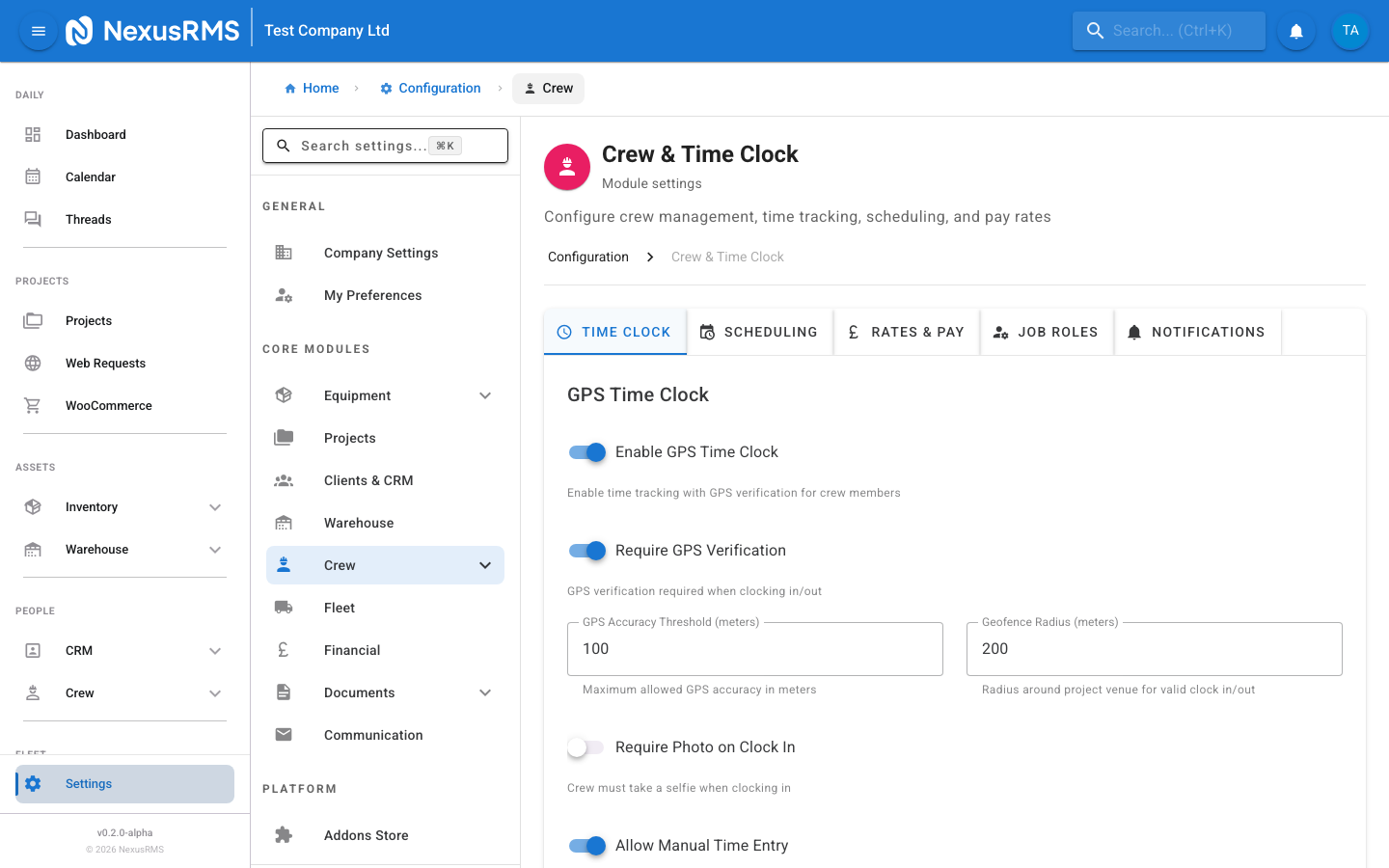
The Time Clock tab configures the GPS-verified time tracking system. This is one of the key advantages NexusRMS has over competitors — your crew can clock in and out from the field with GPS verification, giving you accurate time records and proof of attendance.
GPS Time Clock
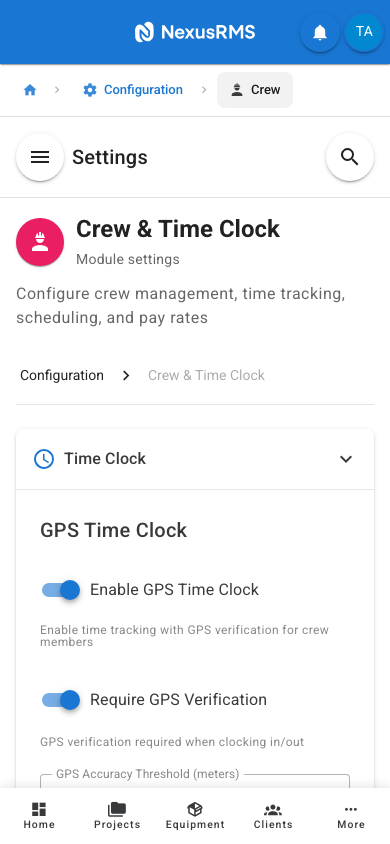
- Enable GPS Time Clock — Master toggle for the GPS-verified time tracking system. When enabled, crew members can clock in and out from their mobile devices. When disabled, time entries must be created manually by managers. Default: Enabled.
- Require GPS — When enabled, the crew member's device must provide a GPS location when clocking in or out. If the device cannot obtain a location (e.g., GPS is turned off), the clock action is blocked. When disabled, clock events are recorded without location data. Default: Enabled.
- GPS Accuracy Threshold — The maximum acceptable GPS accuracy in metres. If the device reports an accuracy worse than this value, the clock action is rejected with a message asking the user to move to a location with better signal. Options: 10m, 25m, 50m, 100m, 200m. Default: 50m.
- Geofencing — When enabled, you can define a geofence radius around a project site. Crew can only clock in when they are physically within the geofence boundary. This prevents clocking in from home or while still in transit. Default: Disabled.
- Geofence Radius — The radius in metres around the project site for geofencing. Only visible when Geofencing is enabled. Default: 200m.
Auto Clock-Out
- Auto Clock-Out Time — The time of day at which any crew member who forgot to clock out is automatically clocked out. This prevents open time entries from running indefinitely. Set to the latest reasonable end time for your operations. Default: 23:00.
- Auto Clock-Out After Hours — Alternatively, automatically clock out any crew member whose shift exceeds this number of hours. This catches forgotten clock-outs during the day without waiting until the auto clock-out time. Default: 16 hours.
- Flag Auto Clock-Outs — When an auto clock-out occurs, the time entry is flagged for review. A manager must verify and adjust the actual end time before the entry can be approved. Default: Enabled.
Breaks
- Break Duration Default — The default break duration in minutes that is pre-filled when a crew member logs a break. Can be adjusted per break. Default: 30 minutes.
- Auto-Deduct Breaks — When enabled, breaks are automatically deducted from the total worked hours. When disabled, breaks are tracked separately and must be manually accounted for. Default: Enabled.
- Mandatory Break After Hours — Require a minimum break after a specified number of continuous hours worked. For example, a 30-minute break after 6 hours of work. Set to 0 to disable. Default: 6 hours.
Overtime and Rounding
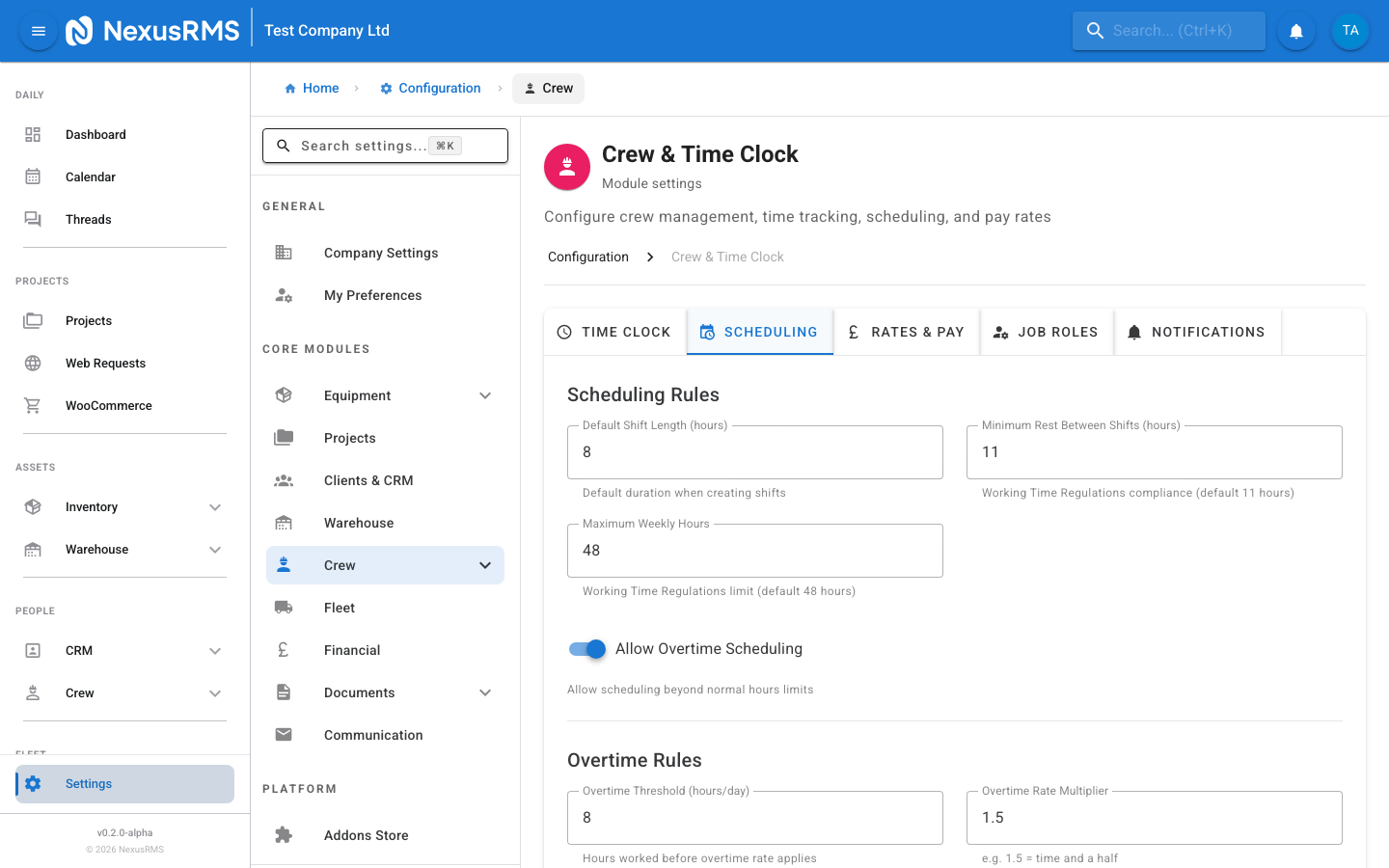
- Overtime Threshold Hours — The number of hours per day after which time is classified as overtime. For example, if set to 8, any time beyond 8 hours in a day is marked as overtime. Default: 8 hours.
- Weekly Overtime Threshold — The number of hours per week after which time is classified as overtime, regardless of daily hours. Default: 40 hours.
- Round Clock Times — Round clock-in and clock-out times to the nearest increment. Options: No Rounding, 5 minutes, 10 minutes, 15 minutes, 30 minutes. Rounding is applied symmetrically (clock-in rounds up, clock-out rounds down). Default: 15 minutes.
Scheduling tab
The Scheduling tab controls how shifts are created, assigned, and managed for your crew members.
Shift Defaults
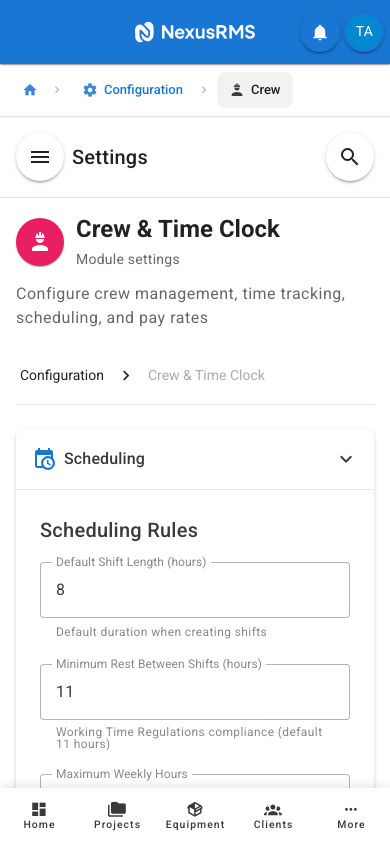
- Default Shift Duration — The default duration in hours for a new shift when it is created. This pre-fills the end time based on the start time. Can be adjusted per shift. Default: 8 hours.
- Default Start Time — The default start time pre-filled when creating a new shift. Default: 09:00.
- Minimum Shift Duration — The shortest allowed shift duration in hours. Shifts shorter than this cannot be created. Default: 2 hours.
- Maximum Shift Duration — The longest allowed shift duration in hours. Shifts exceeding this require manager approval. Default: 16 hours.
Conflict Management
- Allow Schedule Conflicts — When enabled, a crew member can be scheduled for overlapping shifts. A warning is shown but the scheduling is not blocked. When disabled, overlapping shifts are rejected entirely. Default: Disabled.
- Minimum Rest Between Shifts — The minimum number of hours between the end of one shift and the start of the next for the same crew member. Helps comply with working time regulations. Default: 11 hours.
- Maximum Consecutive Days — The maximum number of consecutive days a crew member can be scheduled before a mandatory rest day. Default: 6 days.
Advance Scheduling
- Advance Scheduling Window — How many days into the future schedules can be created. This prevents scheduling too far in advance when project details may still change. Default: 90 days.
- Auto-Assign Based on Skills — When enabled, the scheduling assistant can suggest crew members for shifts based on their skills, certifications, and availability. This does not assign automatically — it generates suggestions for the scheduler to approve. Default: Enabled.
- Show Availability on Schedule — When enabled, crew members' self-reported availability is displayed on the scheduling calendar. Default: Enabled.
Calendar Sync
- Enable Calendar Sync — Allow crew members to sync their NexusRMS schedule with external calendars (Google Calendar, Microsoft Outlook, Apple iCloud). Default: Enabled.
- Sync Direction — Choose whether calendar sync is One-Way (NexusRMS to external) or Two-Way (bidirectional). Two-way sync allows crew to mark availability in their personal calendar and have it reflected in NexusRMS. Default: One-Way.
- Include Project Details in Sync — When enabled, synced calendar events include project name, location, and role details. When disabled, events show only the shift times. Default: Enabled.
Rates and Pay tab
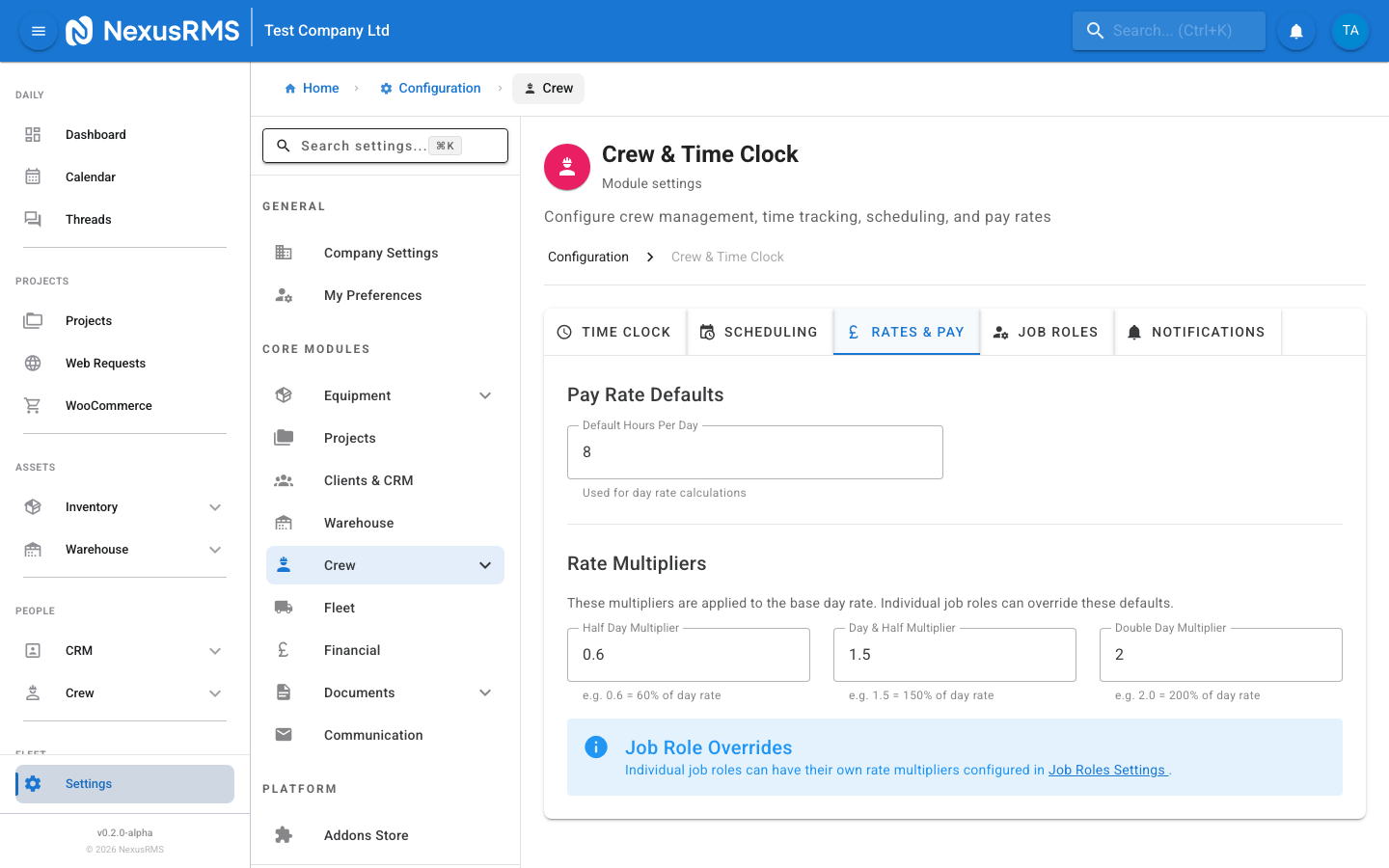
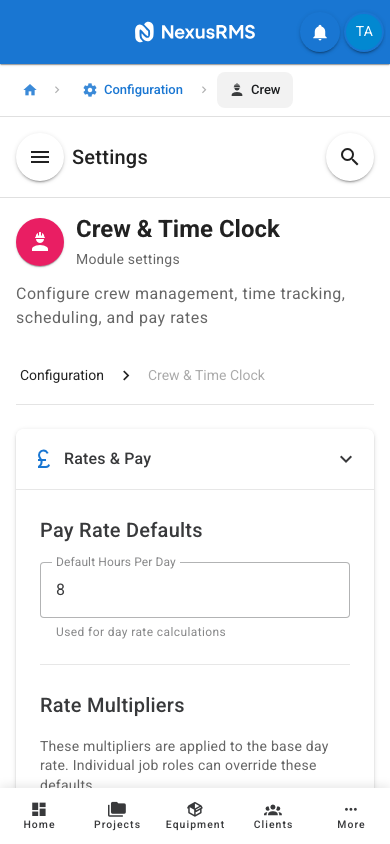
The Rates and Pay tab sets the default compensation values for your crew. Individual crew members can have these rates overridden on their profile.
Base Rates
- Default Hourly Rate — The standard hourly rate applied to new crew members when they are added to the system. This can be overridden on each crew member's profile. Default: 0.00 (must be configured).
- Default Day Rate — An alternative to hourly rate for crews paid by the day. When a day rate is set on a crew member, it takes precedence over hourly calculations. Default: 0.00.
- Currency for Crew Payments — The currency used for all crew rate calculations and pay summaries. This is independent of the invoice currency and is typically your local currency. Default: GBP.
Overtime and Premium Rates
- Overtime Multiplier — The multiplier applied to the hourly rate for overtime hours. For example, 1.5 means time-and-a-half. Default: 1.5x.
- Weekend Rate Multiplier — The multiplier applied to hours worked on Saturdays and Sundays. Set to 1.0 if weekends are paid at the standard rate. Default: 1.5x.
- Bank Holiday Rate Multiplier — The multiplier applied to hours worked on public holidays. Default: 2.0x.
- Night Rate Multiplier — The multiplier for hours worked during the night window (defined by night start and end times below). Default: 1.25x.
- Night Hours Start — The time at which night rates begin. Default: 22:00.
- Night Hours End — The time at which night rates end. Default: 06:00.
Allowances
- Mileage Allowance — The rate per mile/kilometre for crew travel. Crew can log mileage against projects. Default: 0.45 per mile.
- Mileage Unit — Whether mileage is calculated in Miles or Kilometres. Default: Miles.
- Per Diem Rate — The daily allowance for crew members on overnight assignments. Covers meals and incidental expenses. Default: 0.00 (must be configured).
- Accommodation Allowance — A separate daily allowance for accommodation costs on away jobs. Default: 0.00.
Job Roles tab
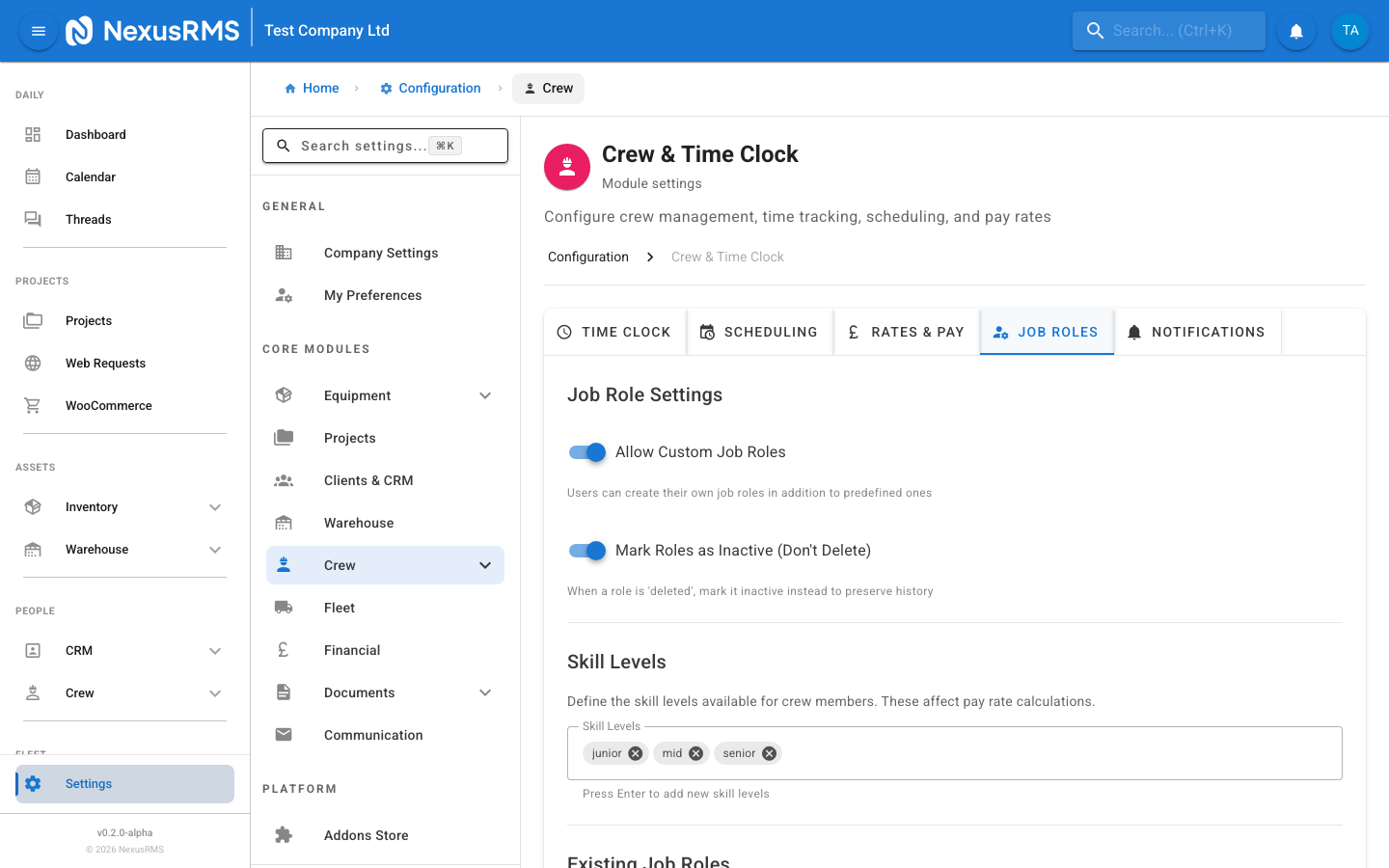
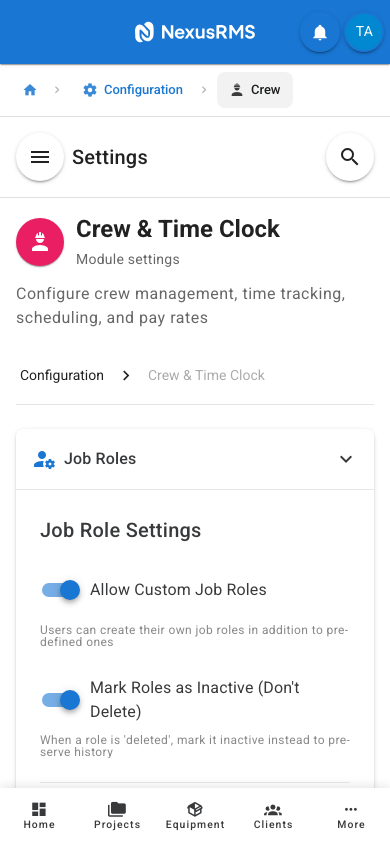
The Job Roles tab links to the dedicated Job Roles management page where you define the roles available in your organisation. Roles are used throughout NexusRMS for scheduling, cost calculation, and skill matching.
Managing Job Roles
Click Manage Job Roles to open the full roles management page. From there you can:
- Create New Roles — Define roles such as Sound Engineer, Lighting Technician, Stage Manager, Driver, Rigger, or any custom role your business requires. Each role has a name, description, and optional colour code for the scheduling calendar.
- Assign Default Rates — Each role can have its own default hourly rate and day rate. When a crew member is assigned to a project in this role, the role rate is used unless overridden by the crew member's personal rate.
- Define Required Skills — Specify the skills needed for each role. Skills are freeform text tags such as "Dante Networking", "Rigging", "D&B System Tech", etc.
- Set Required Certifications — Specify the certifications that must be valid for a crew member to work in this role. Examples: IPAF, PASMA, CSCS Card, First Aid. The system blocks scheduling if certifications are expired.
- Role Categories — Group roles into categories for easier management. Examples: Audio, Lighting, Video, Staging, Transport, General.
Role Settings
- Allow Multiple Roles Per Crew Member — When enabled, a single crew member can be assigned to multiple roles (e.g., a technician who can do both audio and lighting). Default: Enabled.
- Require Role on Scheduling — When enabled, every shift must have a role assigned. When disabled, shifts can be created without specifying a role. Default: Enabled.
- Certification Expiry Warning Days — How many days before a certification expires the system begins showing warnings. Default: 30 days.
- Block Scheduling on Expired Certifications — When enabled, crew members with expired required certifications cannot be scheduled for roles that require those certifications. Default: Enabled.
Notifications tab
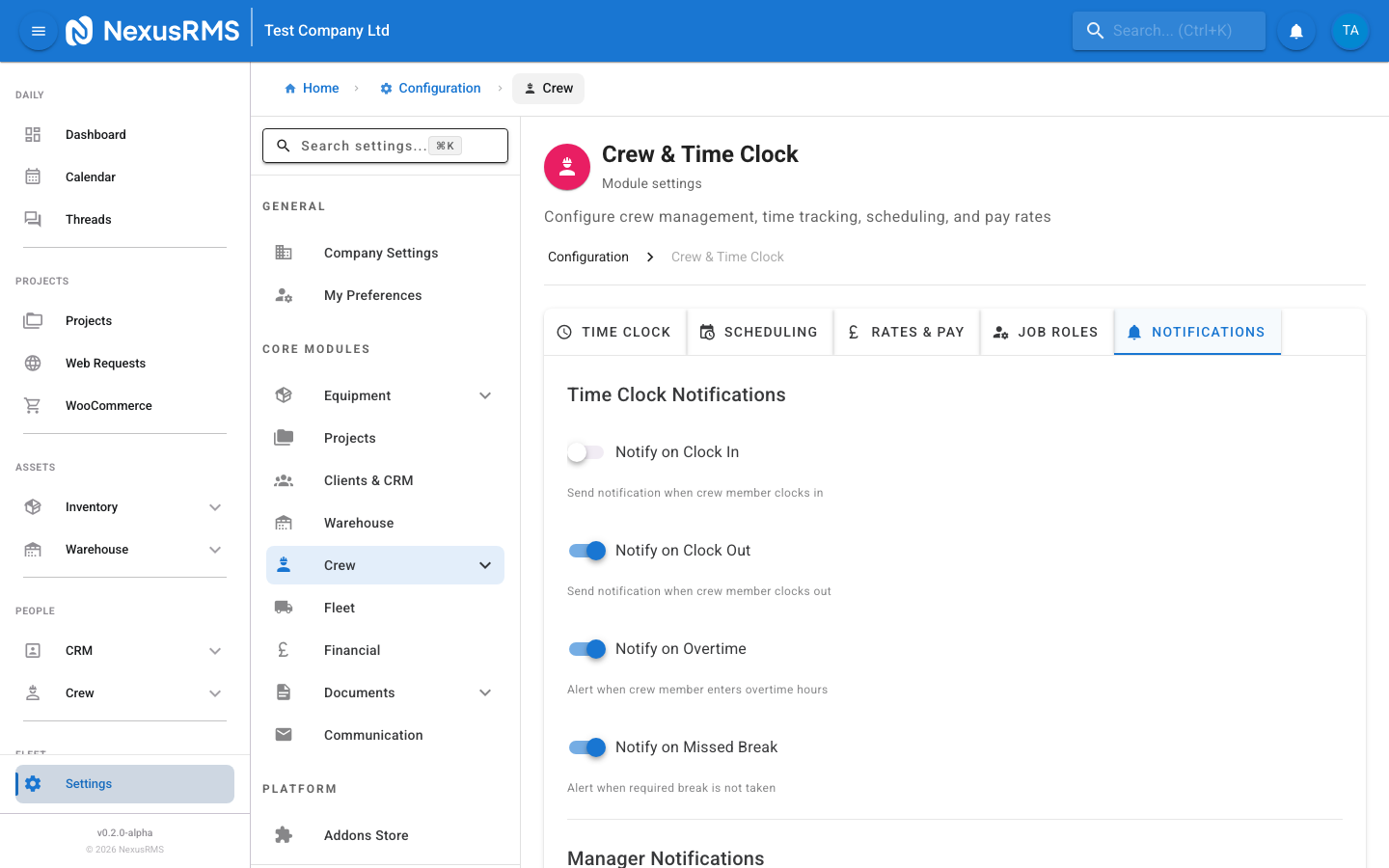
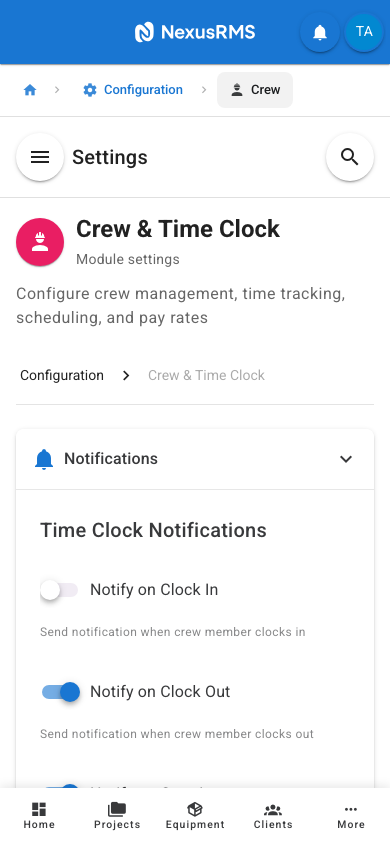
The Notifications tab configures which crew-related events trigger alerts, when they are sent, and to whom.
Shift Reminders
- Enable Shift Reminders — Send a reminder notification to crew members before their scheduled shift starts. Default: Enabled.
- Reminder Timing — How many hours before the shift start time the reminder is sent. Options: 1 hour, 2 hours, 4 hours, 12 hours, 24 hours. Default: 12 hours.
- Include Shift Details — When enabled, the reminder includes project name, location, role, and start/end times. Default: Enabled.
- Reminder Method — How reminders are delivered: In-App Only, Email Only, Push Notification Only, or All. Default: All.
Schedule Change Notifications
- Notify on Schedule Change — When enabled, crew members are immediately notified if their schedule is modified (time changed, role changed, or shift cancelled). Default: Enabled.
- Require Acknowledgement — When enabled, crew members must acknowledge schedule changes. Unacknowledged changes are flagged for the scheduler. Default: Disabled.
- Notify on New Assignment — Send a notification when a crew member is assigned to a new project or shift. Default: Enabled.
Timesheet Notifications
- Timesheet Approval Reminders — Send reminders to managers when timesheets are pending approval. Default: Enabled.
- Approval Reminder Frequency — How often approval reminders are sent for pending timesheets: Daily, Every 2 Days, Weekly. Default: Daily.
- Notify Crew on Approval — Send a notification to the crew member when their timesheet is approved. Default: Enabled.
- Notify Crew on Rejection — Send a notification to the crew member when their timesheet is rejected, including the rejection reason. Default: Enabled.
Certification Alerts
- Certification Expiry Alerts — Send alerts when a crew member's certification is approaching expiry. Default: Enabled.
- Alert Timing — When to send the first expiry alert: 7 days, 14 days, 30 days, 60 days, 90 days before expiry. Default: 30 days.
- Alert Recipients — Who receives certification expiry alerts: Crew Member, CoreManagers, CoreAdmins, or All. Default: Crew Member and CoreManagers.
- Repeat Alert on Expiry — Send an additional alert on the actual expiry date. Default: Enabled.
Tips and best practices
- Enable GPS verification from day one. It establishes accurate time records and builds crew trust in the system. Turning it on later can feel punitive.
- Set the auto clock-out time to something reasonable for your operations. If your latest events typically end at 01:00, set it to 03:00 to account for load-out time.
- Use 15-minute rounding as a fair middle ground. It simplifies payroll calculations without creating significant discrepancies in crew pay.
- Configure required certifications on job roles before scheduling crew. This ensures the system can automatically block non-compliant assignments rather than relying on manual checks.
- Keep shift reminders at 12 hours before as a starting point. This gives crew enough time to prepare without being so far in advance that the reminder is forgotten.
Was this article helpful?