
Equipment Settings
Equipment Settings control how NexusRMS manages your rental inventory. Configure serial number generation, default tracking methods, AI-powered suggestions, stock alerts, and depreciation calculations. These settings apply globally to all equipment unless overridden at the individual item or category level.
Defaults & Automation tab
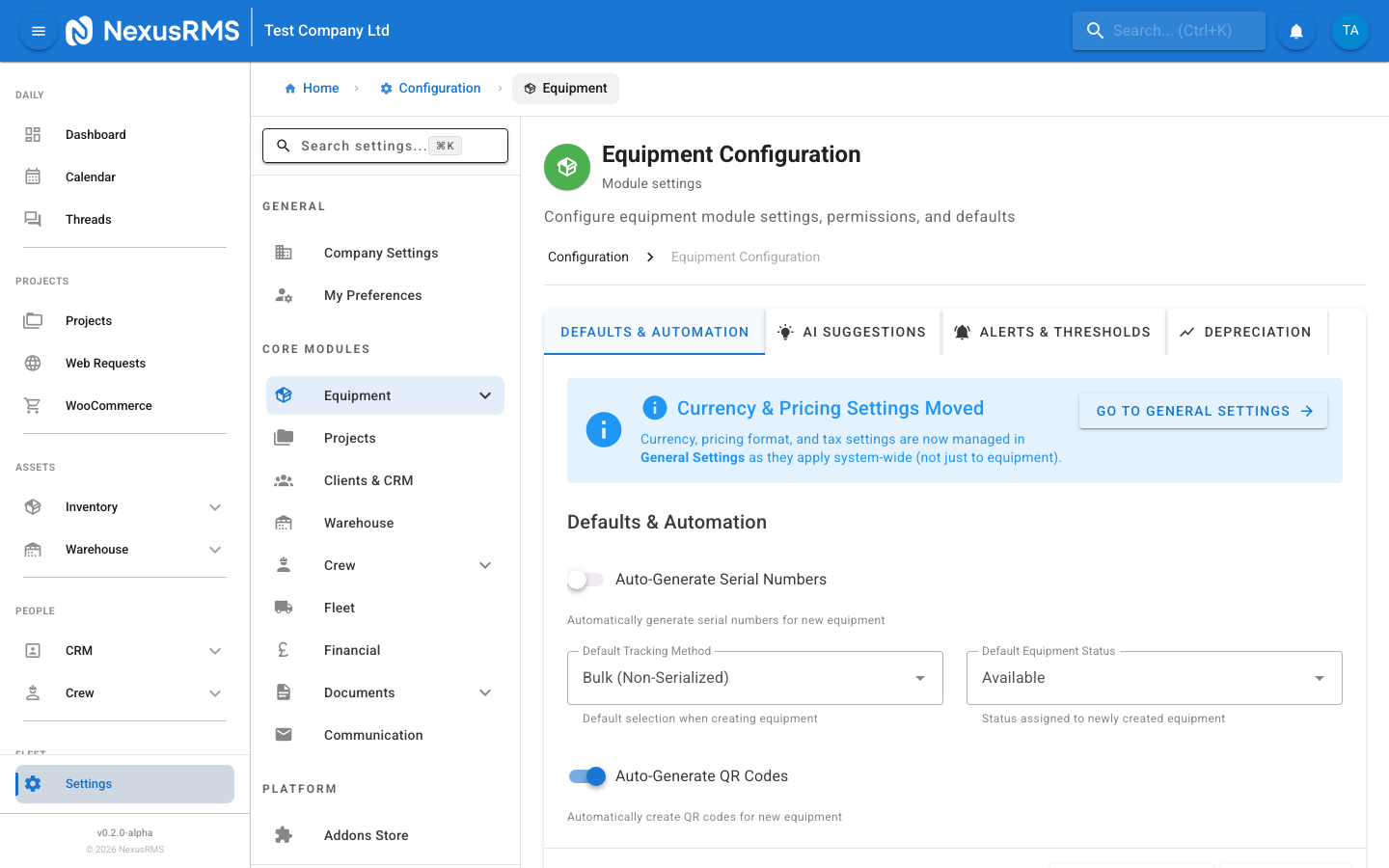
The Defaults & Automation tab sets the baseline behaviour for new equipment added to your inventory.
Auto-Generate Serial Numbers
Auto-Generate Serial Numbers is a toggle that, when enabled, automatically assigns a serial number to each new serialised equipment item when it is created. When disabled, serial numbers must be entered manually. Default: On.
Serial Number Prefix
Serial Number Prefix sets the text prepended to auto-generated serial numbers. For example, if the prefix is NX- and the length is 6, generated numbers would look like NX-000001, NX-000002, and so on. Enter any combination of letters, numbers, and hyphens. Default: NX-. This field is only active when Auto-Generate Serial Numbers is enabled.
Serial Number Length
Serial Number Length sets the number of digits in the numeric portion of auto-generated serial numbers. For example, a length of 6 produces 000001, while a length of 4 produces 0001. Options: 4 to 10. Default: 6. This field is only active when Auto-Generate Serial Numbers is enabled.
Default Tracking Method
Default Tracking Method determines the default tracking approach assigned to new equipment items. Options:
- Bulk — Track quantities only. Used for items like cables, clamps, and consumables where individual tracking is not needed. You enter a total quantity and NexusRMS tracks how many are available, allocated, and out.
- Serialized — Track individual units. Each physical item gets a unique serial number and its own lifecycle (location, condition, maintenance history, project history). Used for high-value items like speakers, cameras, and lighting fixtures.
Default: Bulk. You can override this setting when creating any individual equipment item.
Default Equipment Status
Default Equipment Status sets the initial status assigned to newly created equipment. Options:
- Available — Ready for immediate booking and dispatch
- In Stock — In the warehouse but not yet cleared for booking (useful if you want to inspect items before making them available)
- Needs Testing — Requires PAT testing or other inspection before it can be used
Default: Available. You can change an item's status at any time from its detail page.
Auto-Generate QR Codes
Auto-Generate QR Codes is a toggle that, when enabled, automatically generates a unique QR code for each new equipment item. QR codes can be printed and attached to physical items for quick scanning during check-in, check-out, and stocktakes. When disabled, QR codes can still be generated manually from individual item pages. Default: On.
Note: Currency-related settings (such as default pricing and rate formats) have been moved to General Settings > Currency & Pricing tab.
AI Suggestions tab
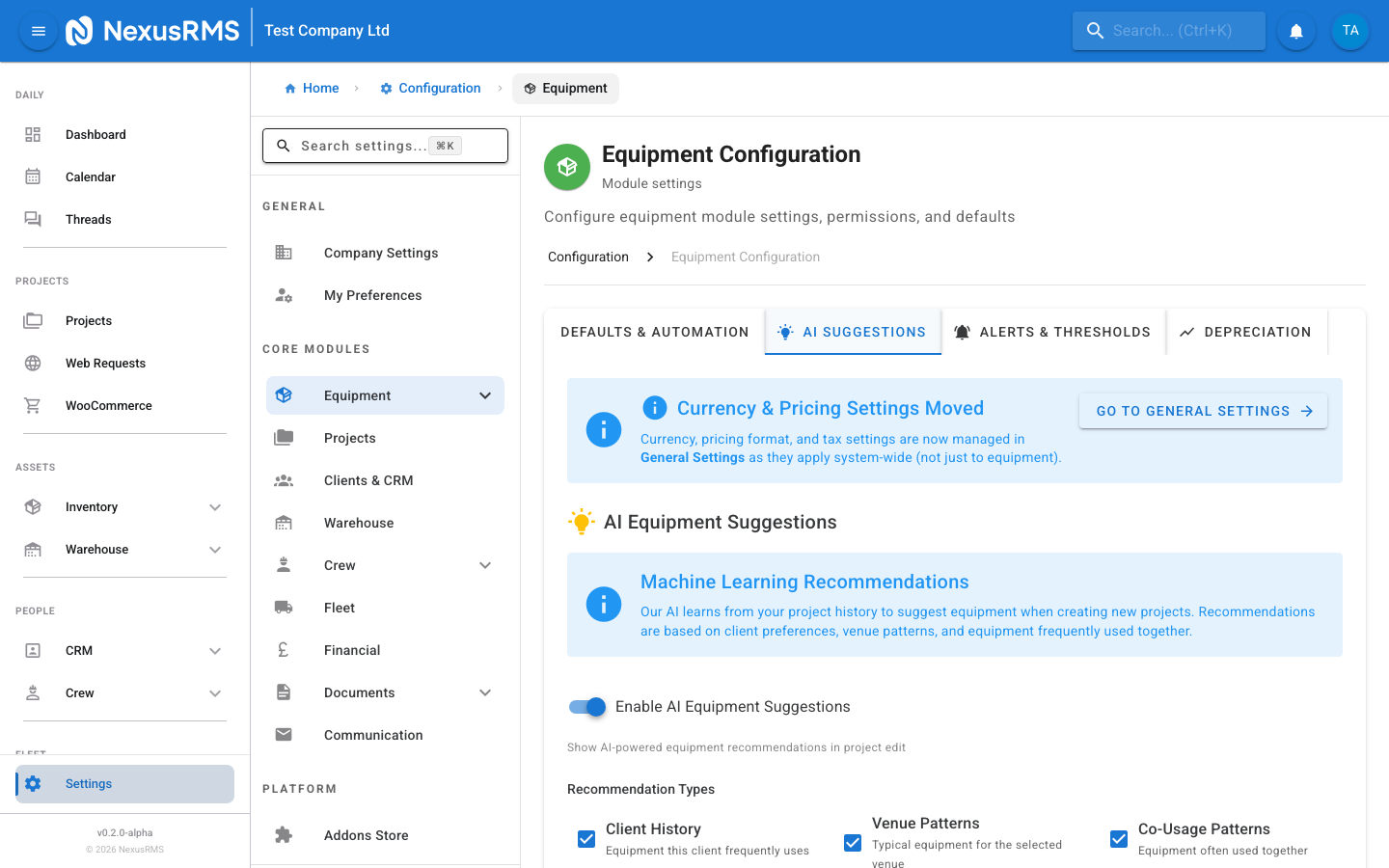
The AI Suggestions tab configures NexusRMS's intelligent equipment recommendation engine. When enabled, the system analyses historical booking data to suggest relevant equipment when building projects.
Enable AI Equipment Suggestions
Enable AI Equipment Suggestions is the master toggle for the entire AI suggestion system. When disabled, no AI-powered recommendations appear anywhere in the system. When enabled, suggestions appear in the project equipment selection workflow based on the configuration below. Default: On.
Recommendation Types
Recommendation Types lets you choose which data sources the AI engine uses to generate suggestions. Each type is an independent checkbox:
- Client History — Suggests equipment that a specific client has booked frequently in the past. Useful for repeat clients with consistent requirements. Default: On.
- Venue Patterns — Suggests equipment commonly booked for a particular venue. For example, if most projects at Venue X include a specific PA system, it will be suggested. Default: On.
- Co-Usage Patterns — Suggests equipment that is frequently booked alongside items already in the project. For example, if you add a mixing desk, the system might suggest the cables and stands typically used with it. Default: On.
Maximum Suggestions
Maximum Suggestions sets the maximum number of AI-generated suggestions shown at one time. Enter a value between 1 and 20. Default: 5. A lower number keeps the interface clean; a higher number gives more options but may feel overwhelming.
Minimum Confidence
Minimum Confidence is a slider that sets the confidence threshold for suggestions. The AI engine assigns a confidence score (0–100%) to each potential suggestion based on how strongly the data supports it. Only suggestions that meet or exceed this threshold are shown. Range: 0% to 80%. Default: 30%. Set higher (50–80%) if you only want highly relevant suggestions. Set lower (0–20%) if you want the system to suggest broadly.
Auto-Learn from Completed Projects
Auto-Learn from Completed Projects is a toggle that, when enabled, feeds data from completed projects back into the AI engine to improve future suggestions. The more projects you complete, the better the suggestions become. When disabled, the AI engine only uses data that existed when it was first trained. Default: On.
Show Availability Status
Show Availability Status is a toggle that controls whether AI suggestions display real-time availability information. When enabled, each suggestion shows whether the item is available for the project's date range, partially available, or fully booked. When disabled, suggestions are shown without availability context. Default: On.
Alerts & Thresholds tab
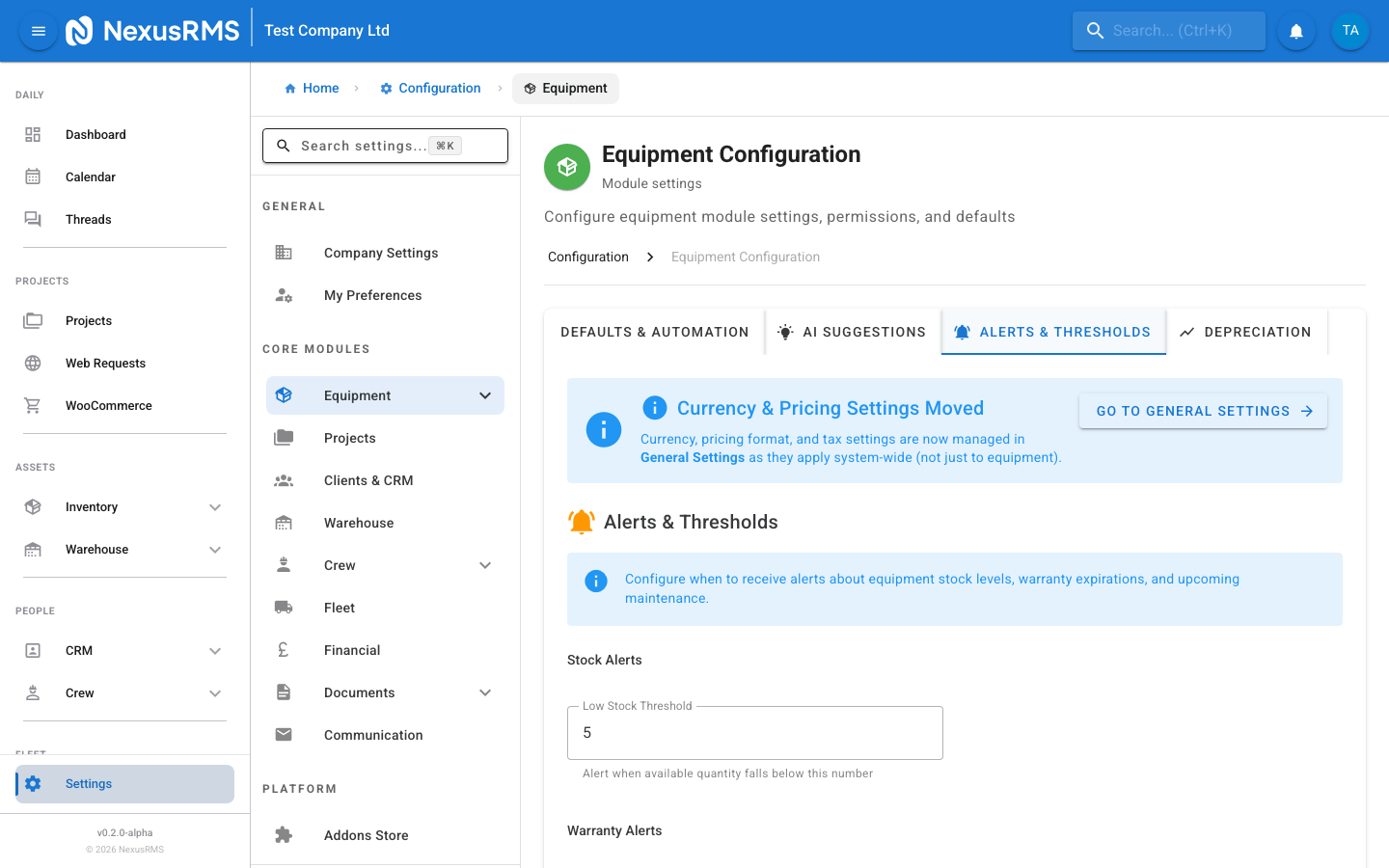
The Alerts & Thresholds tab configures automatic notifications for stock levels, warranty expiry, and upcoming maintenance.
Low Stock Threshold
Low Stock Threshold sets the minimum quantity at which a low stock warning is triggered for bulk-tracked equipment. When the available quantity of any bulk item drops to or below this number, a warning appears on the Dashboard and in the Equipment list. Enter a whole number. Default: 5. Set to 0 to disable low stock warnings globally. You can override this threshold on individual equipment items.
Warranty Expiry Alert Days
Warranty Expiry Alert Days sets how many days before a warranty expires the system should start alerting you. For example, a value of 30 means you will receive alerts 30 days before any equipment warranty expires. Default: 30. Set to 0 to disable warranty expiry alerts.
Email Warranty Alerts
Email Warranty Alerts is a toggle that, when enabled, sends email notifications to CoreAdmins when equipment warranties are approaching expiry (based on the Warranty Expiry Alert Days value). When disabled, warranty alerts only appear in the dashboard and notification centre. Default: Off.
Maintenance Due Alert Days
Maintenance Due Alert Days sets how many days before a scheduled maintenance date the system should start alerting you. For example, a value of 14 means you will receive alerts 14 days before any equipment is due for maintenance. Default: 14. Set to 0 to disable maintenance due alerts.
Email Maintenance Alerts
Email Maintenance Alerts is a toggle that, when enabled, sends email notifications to CoreAdmins when equipment maintenance is approaching its due date (based on the Maintenance Due Alert Days value). When disabled, maintenance alerts only appear in the dashboard and notification centre. Default: Off.
Depreciation tab
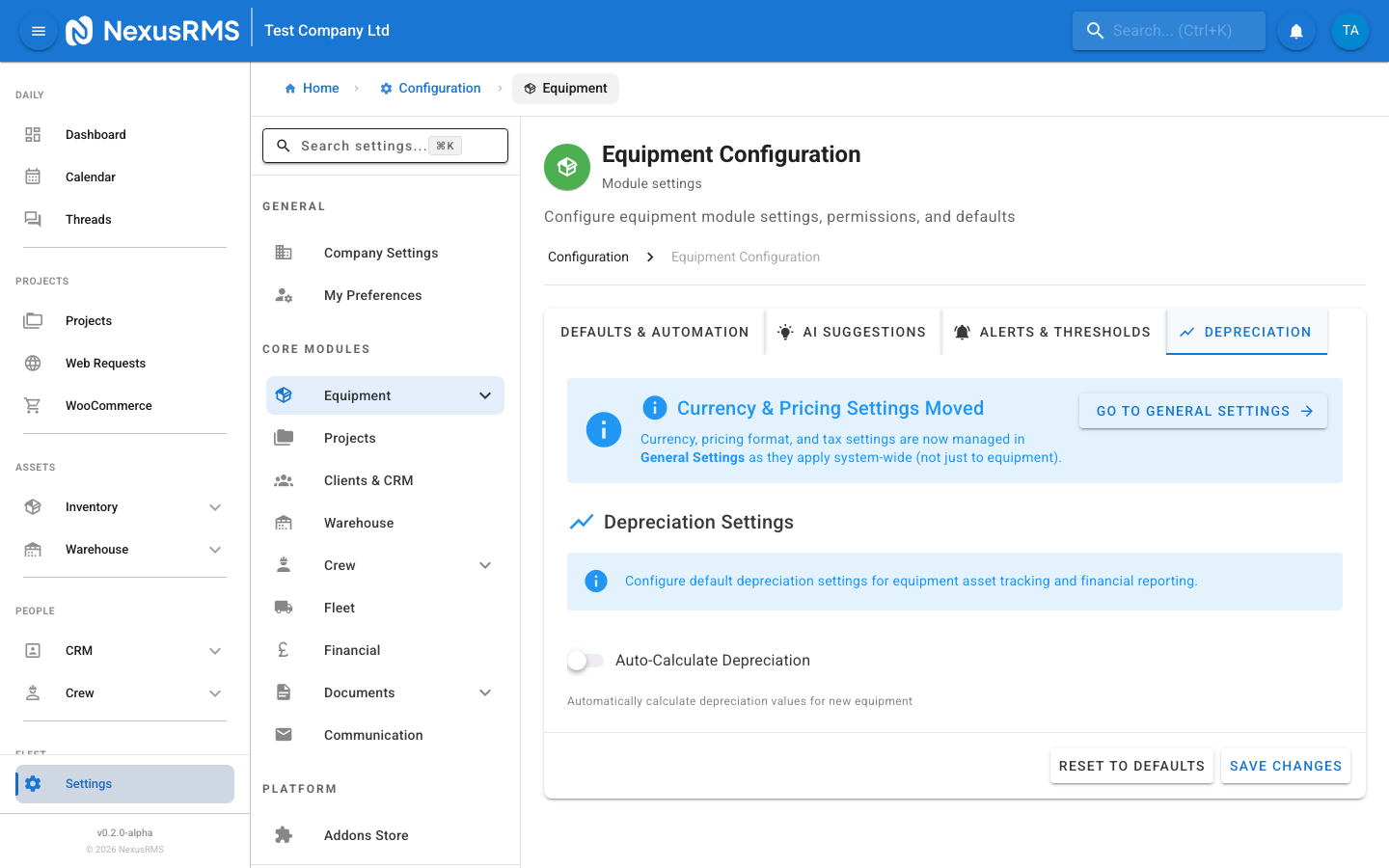
The Depreciation tab controls how NexusRMS calculates the declining value of your equipment over time. Depreciation data feeds into financial reports and asset valuation dashboards.
Auto-Calculate Depreciation
Auto-Calculate Depreciation is a toggle that enables automatic depreciation calculation for all equipment with a purchase price. When enabled, the system recalculates current asset values on a scheduled basis. When disabled, depreciation must be calculated or entered manually. Default: Off.
Default Depreciation Method
Default Depreciation Method sets the calculation method applied to new equipment. Options:
- Straight Line — The asset loses an equal amount of value each year. Calculated as: (Purchase Price - Residual Value) / Useful Life Years. This is the most common method and easiest to understand.
- Declining Balance — The asset loses a fixed percentage of its remaining value each year. Results in higher depreciation in early years and lower in later years. More accurately reflects the rapid value loss of technology equipment.
- None — No depreciation is calculated. The asset retains its purchase price as its book value indefinitely.
Default: Straight Line. You can override this on individual equipment items.
Default Depreciation Rate
Default Depreciation Rate sets the annual depreciation percentage used for the Declining Balance method. Enter a percentage value (e.g., 25 for 25% per year). Default: 20. This field is only relevant when the Declining Balance method is selected. For Straight Line depreciation, the rate is calculated automatically from the useful life.
Default Useful Life Years
Default Useful Life Years sets the expected lifespan of equipment in years. This is used by the Straight Line method to calculate annual depreciation. Enter a whole number of years. Default: 5. Common values: 3 years for technology, 5 years for general equipment, 7–10 years for structural/rigging.
Tips and best practices
- Enable auto-generate serial numbers for serialised items — Manual serial number entry is error-prone and slow. Let the system handle it with a consistent prefix and format.
- Start with a higher confidence threshold for AI — Set it to 50% initially. If you are not seeing enough suggestions, gradually lower it. This avoids cluttering the project builder with low-relevance items.
- Set realistic alert thresholds — If you set low stock to 1, you will only be warned when you are completely out. Set it to a value that gives you time to reorder or reallocate.
- Choose the right depreciation method for your accountant — Check with your accountant or bookkeeper which method they prefer. Straight Line is simpler for tax returns; Declining Balance is more accurate for fast-depreciating technology.
- Review AI suggestions after 20+ completed projects — The AI engine needs data to work effectively. After your first 20 completed projects, review the quality of suggestions and adjust the confidence threshold accordingly.
Next steps
Continue to the next article to learn about Project Settings, where you will configure project templates, numbering formats, sub-projects, field-level permissions, and factor groups.
Was this article helpful?