
Communication & Notifications
The Communication and Notifications settings control how your team communicates internally, how notifications are delivered, and how client-facing emails are configured. Navigate to Settings > Communication to access these options.
Messaging tab
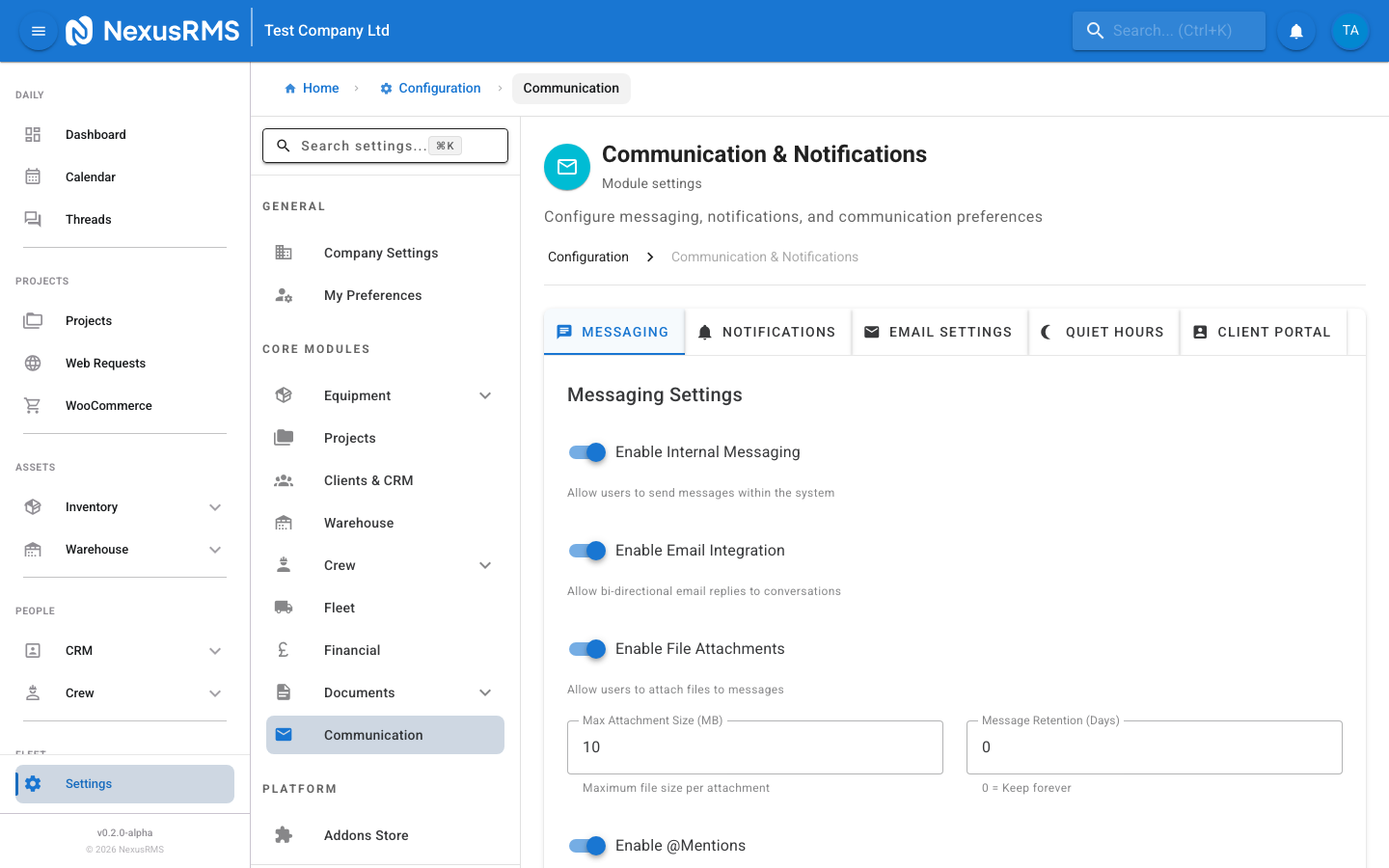
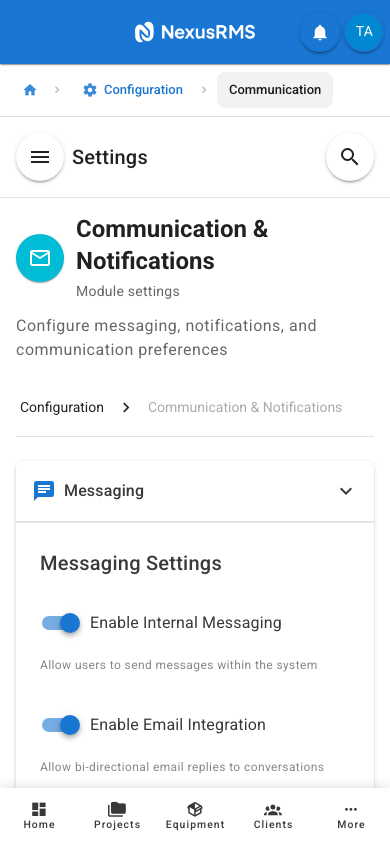
The Messaging tab configures the internal and external messaging system. NexusRMS includes a built-in messaging platform that keeps project-related communication centralised and searchable.
Internal Messaging
- Enable Internal Messaging — Master toggle for the internal messaging system. When enabled, team members can send direct messages, create group conversations, and attach messages to projects. When disabled, the messaging module is hidden from the sidebar. Default: Enabled.
- Allow Group Conversations — When enabled, users can create group conversations with multiple team members. When disabled, only one-to-one direct messages are available. Default: Enabled.
- Allow Project-Linked Messages — When enabled, messages can be linked to specific projects, keeping all project communication in one thread. These messages appear in the project's Communication tab. Default: Enabled.
- Message Retention Days — The number of days messages are retained before automatic deletion. Set to 0 for indefinite retention. Deleted messages are permanently removed and cannot be recovered. Default: 0 (indefinite).
External Messaging
- Enable External Messaging — When enabled, the messaging system can send and receive emails through your connected email integration. This allows you to communicate with clients directly from NexusRMS without switching to a separate email client. Default: Disabled.
- External Email Provider — Select the email integration for external messaging: SMTP, Postmark, or Gmail API. Configuration details are entered in the Email Settings tab. Default: SMTP.
- Log External Emails — When enabled, all external emails sent through NexusRMS are logged and viewable in the message history. Default: Enabled.
File Attachments
- Allow File Attachments — When enabled, users can attach files to messages. When disabled, messages are text-only. Default: Enabled.
- Maximum Attachment Size — The maximum file size for a single attachment in megabytes. Options: 5 MB, 10 MB, 25 MB, 50 MB. Default: 25 MB.
- Allowed File Types — Restrict which file types can be attached. Options: All Files, Documents Only (PDF, DOC, XLS, etc.), Images Only (JPG, PNG, GIF), Documents and Images. Default: All Files.
- Scan Attachments for Viruses — When enabled, uploaded attachments are scanned for malware before being stored. Infected files are rejected. Default: Enabled.
Notifications tab
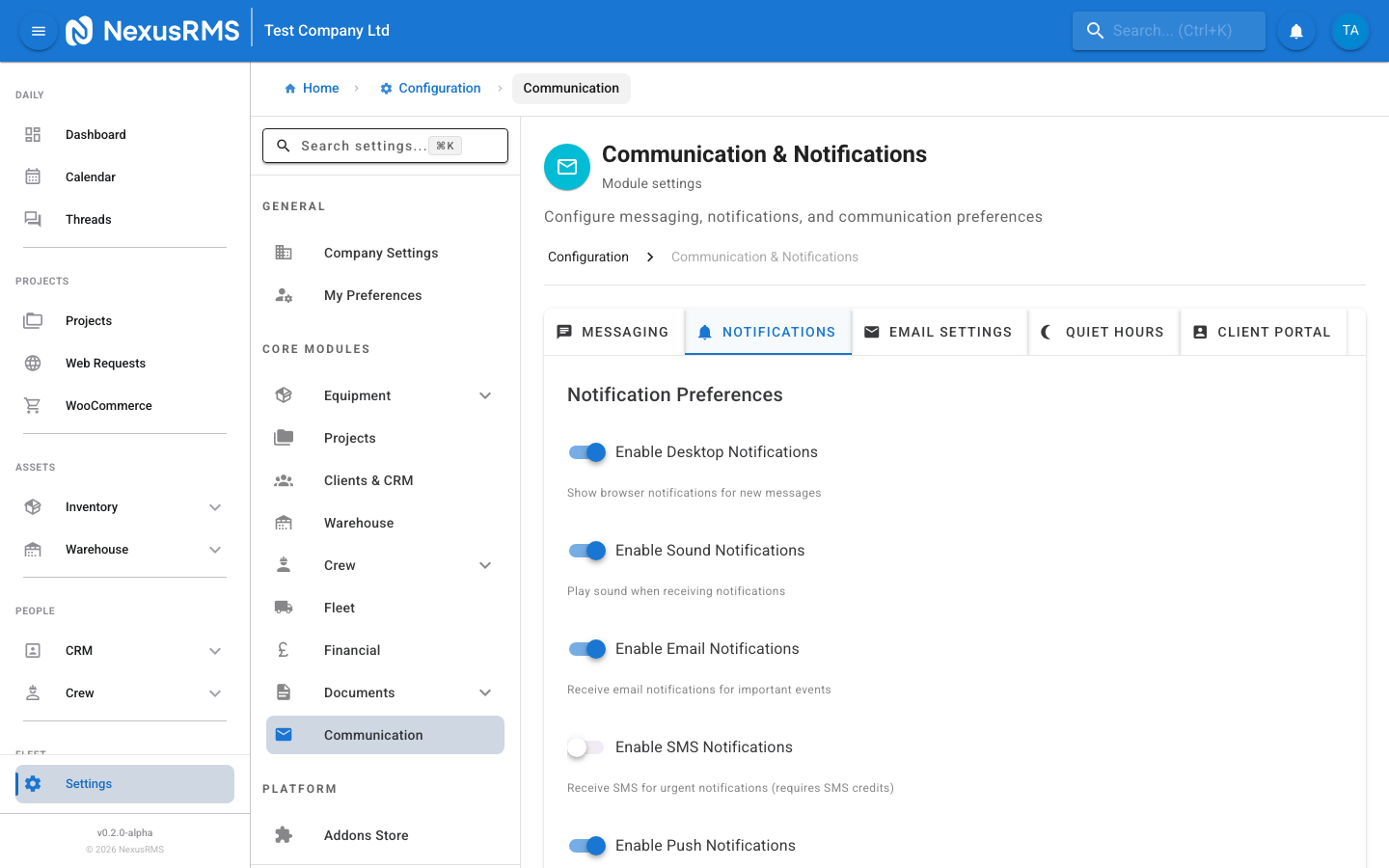
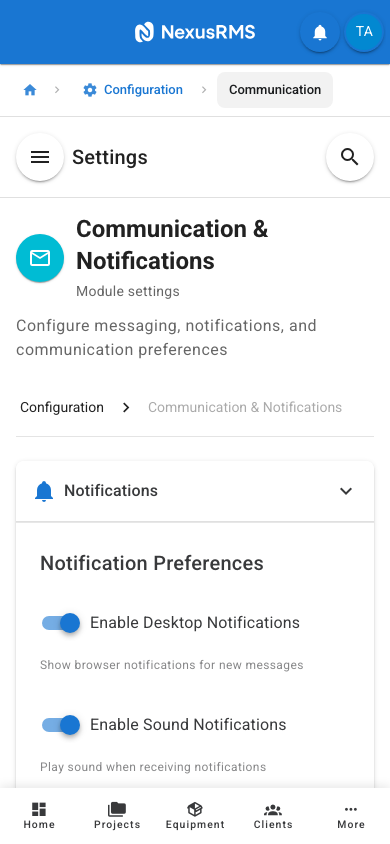
The Notifications tab controls the global notification preferences for your entire tenant. Individual users can further customise their personal preferences, but these settings define the system-wide defaults.
Global Notification Preferences
- In-App Notifications — Master toggle for in-app notifications (the bell icon in the top navigation). When disabled, no in-app notifications appear for any user. Default: Enabled.
- Push Notifications — Master toggle for browser push notifications. When enabled and users have granted browser permission, notifications appear even when NexusRMS is not the active tab. Default: Enabled.
- Email Notifications — Master toggle for email notifications. When disabled, no notification emails are sent to any user (transactional emails like password resets are not affected). Default: Enabled.
- Sound Alerts — When enabled, in-app notifications play a sound alert. Users can individually mute sounds in their profile settings. Default: Enabled.
Email Digest Frequency
- Default Digest Frequency — The default email digest frequency for new users. Each user can override this in their profile. Options: Instant (every notification sends an email immediately), Hourly (batched summary every hour), Daily (single daily summary email), Weekly (weekly digest). Default: Instant.
- Digest Send Time — For Daily and Weekly digests, the time of day the digest email is sent. Default: 08:00.
- Weekly Digest Day — For Weekly digests, the day of the week the digest is sent. Default: Monday.
Notification Categories
Control which categories of notifications are active system-wide. Each category can be individually toggled:
- Project Notifications — Status changes, assignment updates, deadline reminders, approval requests. Default: Enabled.
- Equipment Notifications — Availability changes, maintenance due, damage reports, stock alerts. Default: Enabled.
- Financial Notifications — Invoice created, payment received, quote approved, overdue payment reminders. Default: Enabled.
- Crew Notifications — Schedule changes, shift reminders, timesheet approvals, certification expiry. Default: Enabled.
- Warehouse Notifications — Check-in/out events, stock counts, low stock alerts, damage reports. Default: Enabled.
- System Notifications — User invitations, role changes, settings updates, system maintenance. Default: Enabled.
Email Settings tab
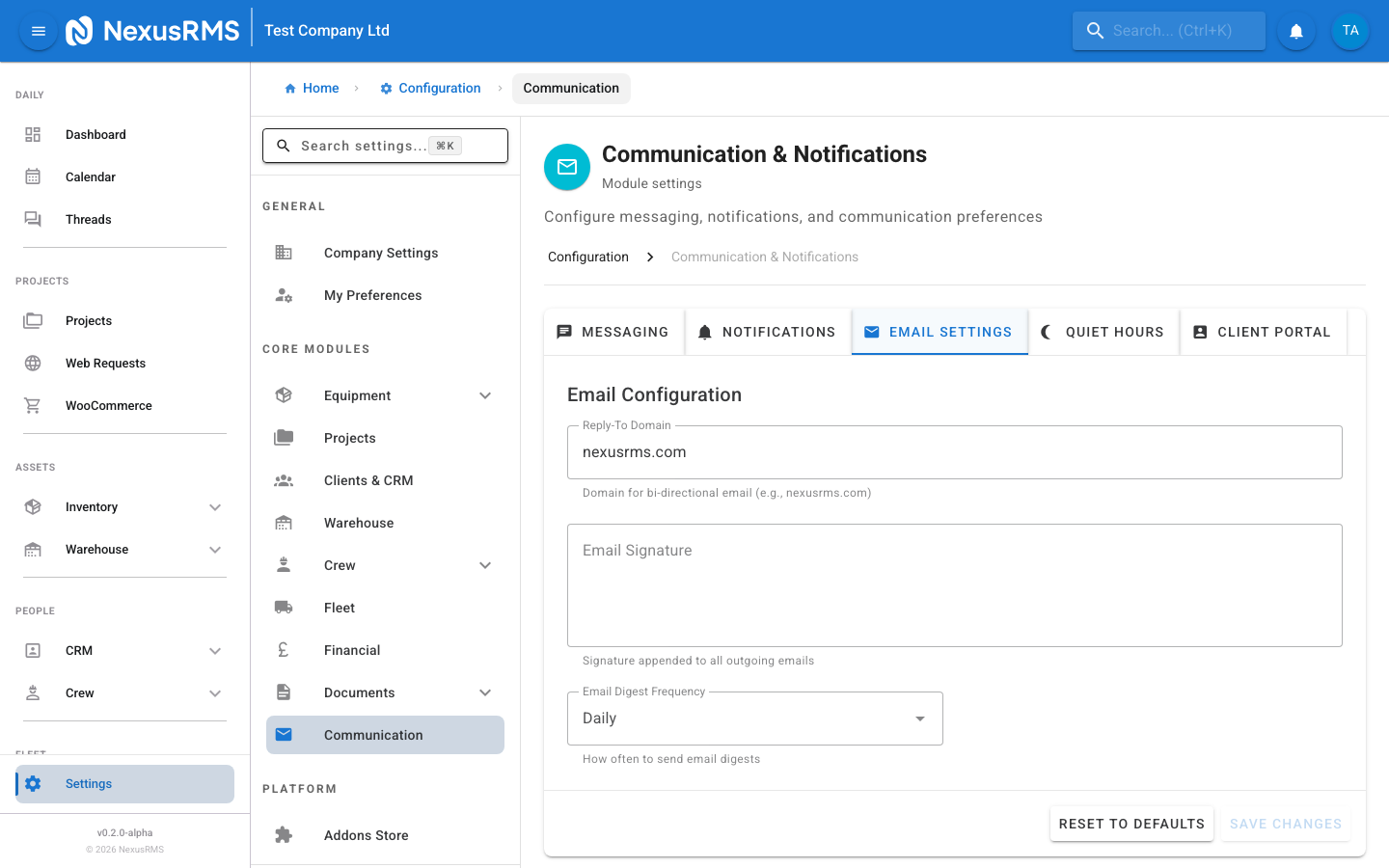
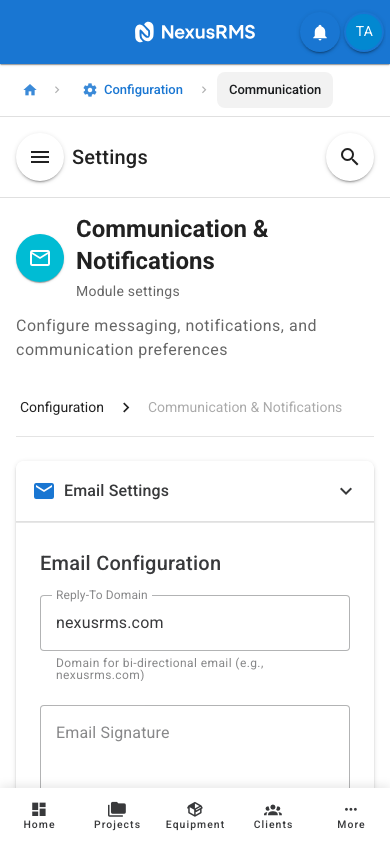
The Email Settings tab controls the branding and configuration for all outgoing emails from your NexusRMS tenant. This includes transactional emails (invoices, quotes), notification emails, and external messages.
Sender Configuration
- From Name — The display name that appears in the "From" field of all outgoing emails. Typically your company name. Default: Your company name (from Company Profile).
- Reply-To Address — The email address recipients see when they click "Reply". This should be a monitored mailbox. Default: The CoreAdmin's email address.
- BCC Address — An optional email address that receives a blind carbon copy of every outgoing email. Useful for record-keeping or compliance. Leave blank to disable. Default: Blank (disabled).
Email Signature
- Email Signature — A block of text appended to the bottom of every outgoing email. Supports basic formatting (bold, italic, links). Typically includes your company name, phone number, website, and legal disclaimers. Default: Company name and address from Company Profile.
- Include Signature on Notifications — When enabled, the email signature is appended to notification digest emails as well as transactional emails. Default: Disabled.
Email Template Branding
- Email Logo — Upload your company logo to appear in the header of all email templates. Recommended size: 200x60 pixels, PNG or SVG format. Default: NexusRMS logo.
- Primary Colour — The primary colour used in email template headers, buttons, and links. Enter a hex colour code. Default: #1976D2.
- Secondary Colour — The secondary colour used for accents and secondary buttons in email templates. Default: #2196F3.
- Footer Text — Custom text displayed in the footer of all email templates. Typically used for legal disclaimers, unsubscribe instructions, or company registration numbers. Default: Blank.
- Preview Email Template — Click this button to send a preview email to your own address so you can verify branding before it goes live.
Quiet Hours tab
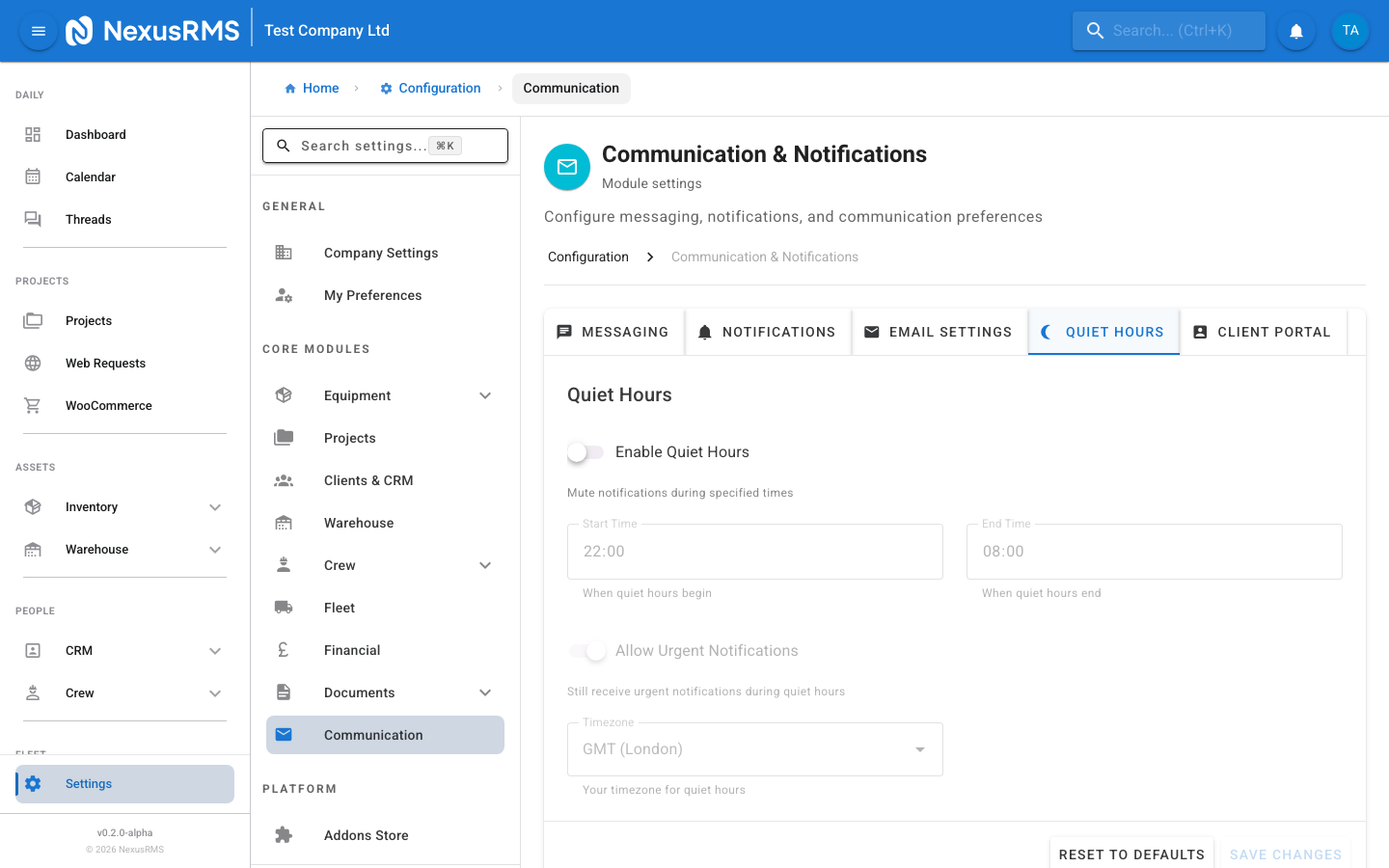
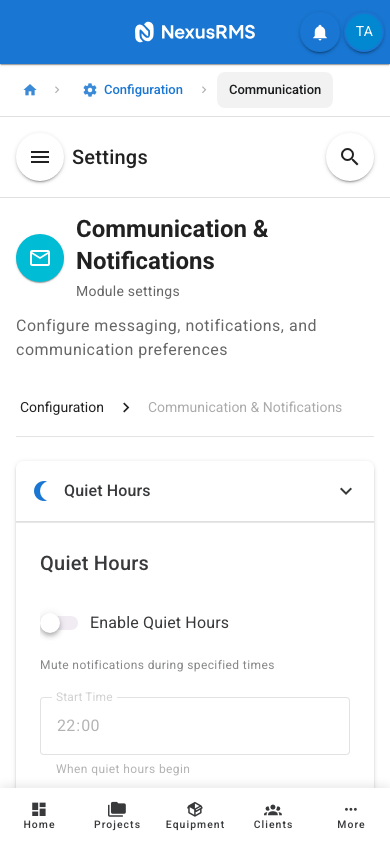
Quiet Hours allow you to suppress non-urgent notifications during specific times, ensuring your team is not disturbed outside of working hours.
Quiet Hours Configuration
- Enable Quiet Hours — Master toggle for the quiet hours system. When enabled, notifications are suppressed during the configured window. Suppressed notifications are delivered when quiet hours end. Default: Disabled.
- Start Time — The time at which quiet hours begin. Notifications sent after this time are held until quiet hours end. Default: 20:00.
- End Time — The time at which quiet hours end. All suppressed notifications are delivered at this time. Default: 07:00.
- Time Zone — The time zone used for quiet hours calculation. This applies globally to the tenant. Individual users in different time zones may want to set their own quiet hours in their profile. Default: Tenant time zone from Company Profile.
Days of Week
- Active Days — Select which days of the week quiet hours are active. For example, you may want quiet hours Monday through Friday evenings, but allow notifications on weekends for event crew. Each day has its own toggle. Default: Every day.
- Weekend-Only Mode — A quick toggle that enables quiet hours only on Saturday and Sunday (all day). Useful for office-based teams that do not work weekends. Default: Disabled.
Overrides
- Emergency Override — When enabled, notifications classified as "Emergency" or "Critical" bypass quiet hours and are delivered immediately. Emergency notifications include critical equipment damage, system security alerts, and manually flagged urgent messages. Default: Enabled.
- Affected Notification Types — Choose which notification types are suppressed during quiet hours: All, Email Only, Push Only, or Email and Push. In-app notifications are always delivered silently (without sound) during quiet hours. Default: Email and Push.
- Allow User Override — When enabled, individual users can opt out of quiet hours in their profile settings, ensuring they always receive notifications. Default: Enabled.
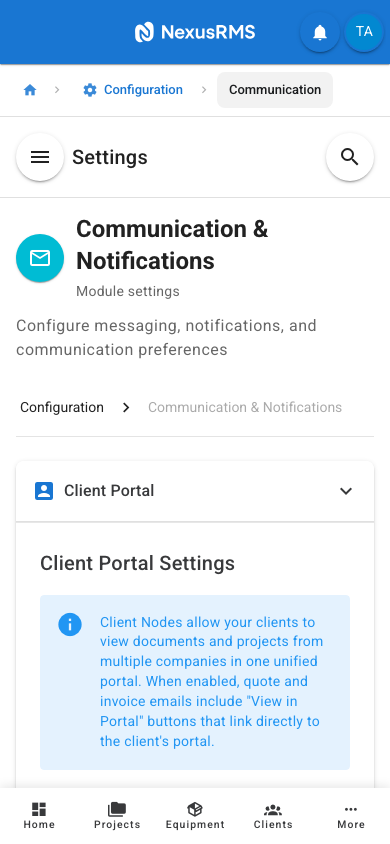
Client Portal tab
The Client Portal tab controls which notifications are sent to your clients through the Client Node portal. These settings affect external client-facing communications, not internal team notifications.
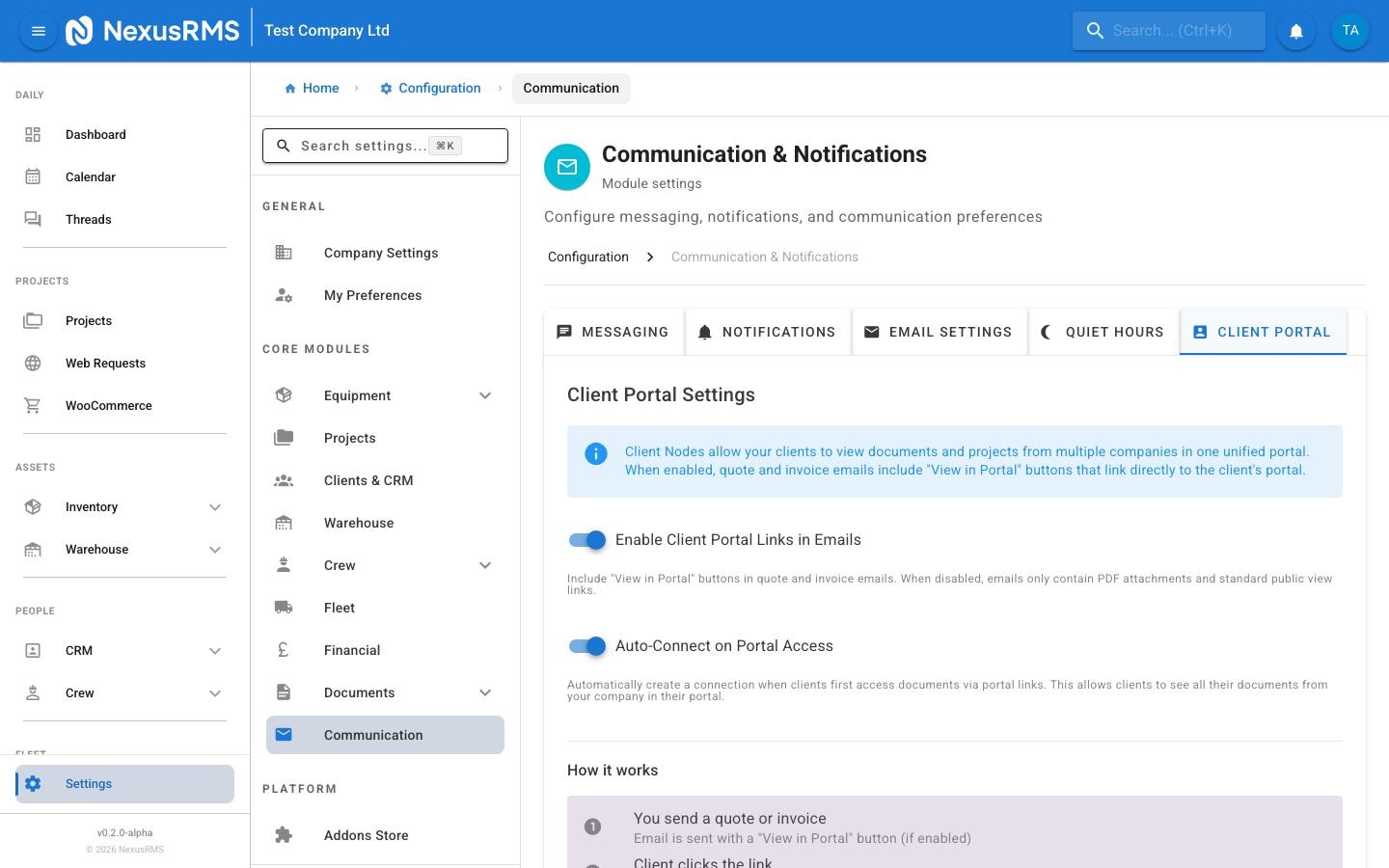
Quote Notifications
- Auto-Send Quote Notifications — When enabled, clients are automatically notified via email when a new quote is created for them. The email includes a link to view and approve the quote in the Client Portal. Default: Enabled.
- Quote Reminder — Send a follow-up reminder if the client has not responded to the quote within a specified number of days. Default: Enabled.
- Quote Reminder Days — The number of days to wait before sending a quote reminder. Default: 3 days.
- Maximum Reminders — The maximum number of follow-up reminders to send for a single quote. Default: 2.
Invoice Notifications
- Auto-Send Invoice Notifications — When enabled, clients are automatically notified when an invoice is issued. The email includes a link to view and pay the invoice in the Client Portal. Default: Enabled.
- Payment Confirmation — Send a confirmation email to the client when their payment is received. Default: Enabled.
- Overdue Invoice Reminders — Send reminder emails for invoices that are past due. Default: Enabled.
- Overdue Reminder Schedule — When overdue reminders are sent: 1 day overdue, 7 days overdue, 14 days overdue, 30 days overdue. Each interval can be individually toggled. Default: All enabled.
Project Status Notifications
- Notify on Project Status Change — When enabled, clients are notified when their project status changes (e.g., Confirmed, In Progress, Completed). Default: Enabled.
- Status Changes to Notify — Select which status transitions trigger a client notification. You may want to notify on "Confirmed" and "Completed" but not on internal statuses like "Packing" or "In Transit". Default: Confirmed, Delivered, Completed.
- Include Project Details — When enabled, status change notifications include project dates, location, and a summary of equipment. Default: Enabled.
- Allow Client Replies — When enabled, clients can reply to notification emails, and their response is logged in the project's communication thread. Default: Enabled.
Tips and best practices
- Set the email digest to "Instant" for small teams and "Hourly" or "Daily" for larger teams. Instant delivery keeps everyone responsive, but can become overwhelming when dozens of notifications are generated per hour.
- Always configure a monitored Reply-To address. Clients frequently reply to notification emails, and those replies should reach someone who can respond.
- Enable quiet hours for your team but keep emergency override on. This ensures no one is disturbed at 2am by a routine notification, but critical equipment damage or security alerts still get through.
- Use the quote reminder feature to follow up automatically. Many clients appreciate the nudge, and it saves your team from having to manually chase responses.
- Customise your email template branding before sending any client-facing emails. A branded email with your logo and colours looks professional and builds trust.
Was this article helpful?