
Stock Management
Stock Management gives you complete visibility into the quantity, condition, and status of every piece of equipment in your inventory. Whether you track items in bulk or by individual serial number, NexusRMS provides real-time stock levels, low-stock alerts, reorder notifications, and a full adjustment history to keep your warehouse accurate.
Understanding stock levels
Every equipment item in NexusRMS has a stock breakdown that shows exactly where your inventory stands at any given moment. The stock summary is displayed on the equipment detail page and in the Equipment List columns:
- Total Quantity — The total number of units you own
- Available — Units that are in the warehouse and free to be allocated to projects
- Rented Out — Units currently allocated to active projects
- In Maintenance — Units undergoing repair or scheduled servicing
- Damaged — Units flagged as damaged and not available for hire
- Lost — Units reported as missing or unaccounted for
The available count is calculated automatically: Available = Total − Rented Out − In Maintenance − Damaged − Lost.
Stock management on the Create/Edit page
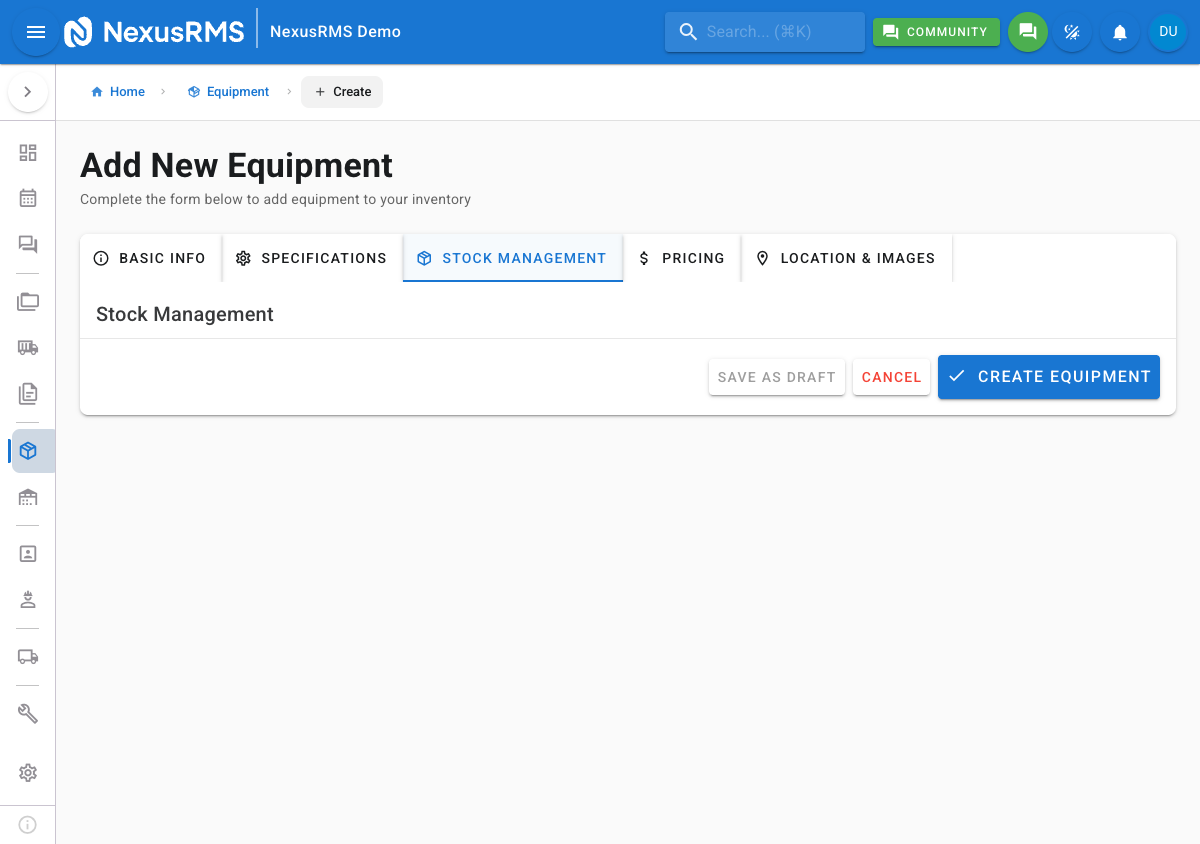
When creating or editing equipment, stock settings are found on Tab 3: Stock Management of the equipment form. This tab contains the following fields:
- Total Quantity — The total number of units you own. For serialized equipment, this is automatically calculated from the number of serial entries.
- Reorder Point — The available quantity threshold at which the system generates a low-stock alert. For example, setting this to 5 means you are notified when available stock drops to 5 or below.
- Reorder Quantity — The suggested number of units to order when a reorder alert triggers. This value appears in the alert notification for quick reference.
Condition tracking
Every equipment item has a condition rating that reflects its physical state. Conditions are used for filtering, reporting, and deciding which items to send on high-profile jobs:
- New — Brand new, unused item
- Excellent — Minimal signs of use, fully functional
- Good — Normal wear and tear, fully functional
- Fair — Visible wear, still functional but may need attention soon
- Poor — Significant wear, functional but approaching end of useful life
- Damaged — Not functional, requires repair before it can be hired out
For bulk-tracked items, the condition applies to the entire stock pool. For serialized items, each individual unit has its own condition rating.
Status tracking
Equipment status indicates the operational state of the item within your business:
- Active — Part of your active rental fleet, available for hire
- Inactive — Temporarily removed from the rental fleet (e.g., seasonal items stored off-site)
- Retired — Permanently removed from the rental fleet, kept for records only
- Sold — Sold and no longer part of your inventory
Only items with Active status appear as available for project allocation. Inactive, Retired, and Sold items are excluded from availability calculations.
Bulk equipment stock
Bulk-tracked items use quantity-based stock management. You set the total quantity and the system tracks how many units are in each state. To adjust stock up or down, open the equipment item and click Adjust Stock. Enter the adjustment amount (positive to add, negative to remove) and select a reason from the dropdown. The adjustment is logged with a timestamp and the user who made the change.
Serialized equipment stock
Serialized equipment tracks each physical unit individually. Every serial entry has its own condition, status, location, maintenance history, and project allocation history. The total quantity is automatically calculated from the number of serial entries. To add a new unit, click Add Serial on the Stock Management tab and enter the serial number (or let the system auto-generate one based on your Equipment Settings). To remove a unit, change its status to Retired or Sold.
Stock alerts
NexusRMS monitors your stock levels and generates alerts when available quantities drop below your configured thresholds. Low-stock warnings appear as notifications in the top-right bell icon and on the Dashboard low-stock widget. The alert includes the equipment name, current available quantity, reorder point, and suggested reorder quantity.
Stock alert thresholds are configured in two places: the Reorder Point field on each equipment item, and the global Low Stock Threshold in Configuration > Equipment > Alerts & Thresholds. The per-item reorder point takes precedence when set; otherwise the global threshold applies.
Stock adjustments
Every change to stock quantity is recorded as a stock adjustment with a reason. The following adjustment reasons are available:
- Received — New stock received from a supplier or purchase order
- Damaged — Units removed from available stock due to damage
- Lost — Units reported as missing or stolen
- Returned — Units returned from a project or client
- Corrected — Manual correction after a stocktake revealed a discrepancy
The stock adjustment history is available on the equipment detail page under the Stock History tab. Each entry shows the date, user, adjustment type, quantity change, and any notes entered at the time of adjustment.
Multi-warehouse stock
If you have the Multi-Warehouse addon enabled, stock is tracked per warehouse location. The stock breakdown on the equipment detail page shows a location-by-location split, so you can see exactly how many units are available at each site. Transfers between warehouses are recorded as stock movements with source and destination locations.
Stock reporting
Stock level reports are available under the Analytics module. Key reports include:
- Stock Summary — Overview of total, available, and allocated stock across all categories
- Low Stock Report — Lists all items currently below their reorder point
- Stock Movement History — Timeline of all adjustments, transfers, and allocations over a date range
- Utilisation Report — Shows how often each item is rented versus sitting idle
Tips
- Set realistic reorder points — Base your reorder points on booking frequency and lead times from suppliers. If an item takes two weeks to restock, set the reorder point high enough to cover two weeks of bookings.
- Record a reason for every stock adjustment — This creates an auditable trail that helps you identify patterns such as recurring damage or unexplained losses.
- Conduct regular stocktakes using the Scanner — Use Batch Scan mode to walk through the warehouse and verify physical stock matches system records. Correct any discrepancies immediately with the Corrected adjustment reason.
- Monitor the Low Stock Report weekly — Catching low-stock items early gives you time to reorder before you have to decline bookings.
Next steps
Continue to the next article to learn about Sale Items, where you will manage consumables and products sold alongside your rental equipment.
Was this article helpful?