
Equipment List Page
The Equipment List page is your primary view of the entire rental inventory. It supports two view modes, powerful search and filtering, bulk operations, and a quick preview feature that lets you inspect items without leaving the page.
View modes
The Equipment List offers two view modes, toggled using the icon buttons in the top-right corner of the page. Your preference is saved to localStorage and persists across sessions.
Grid view
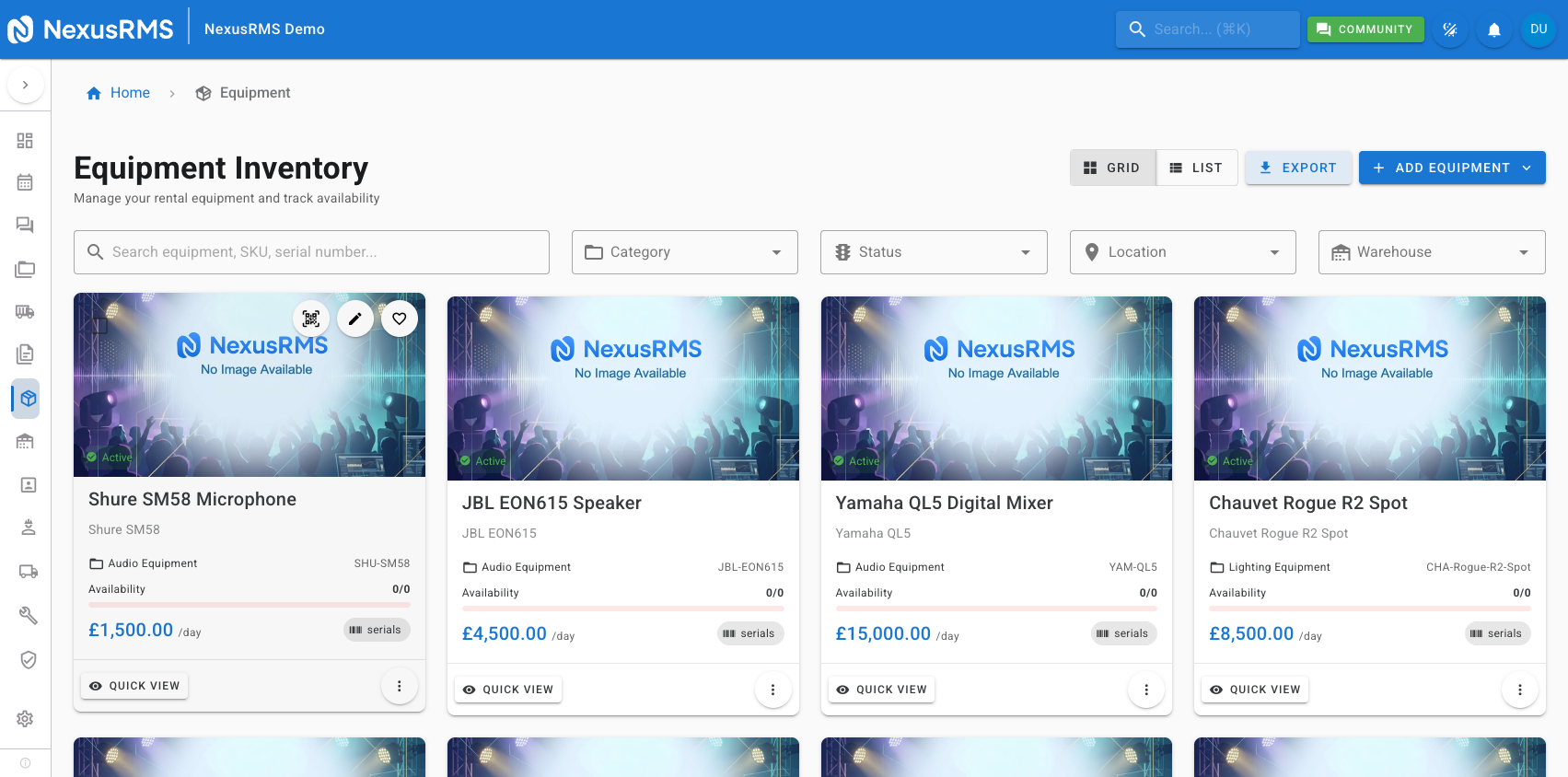
Grid view displays equipment as visual cards in a responsive grid. Each card shows:
- Primary image — The featured image for the item (or a placeholder icon if no image is uploaded)
- Equipment name and SKU
- Manufacturer and model
- Availability percentage — Colour-coded: green (≥75%), yellow (25–74%), orange (1–24%), red (0%)
- Stock count — Available units out of total units
- Location — Current warehouse or storage location
Grid view is ideal for visual inventory review, quickly spotting items by image, and getting an at-a-glance overview of stock health.
List view
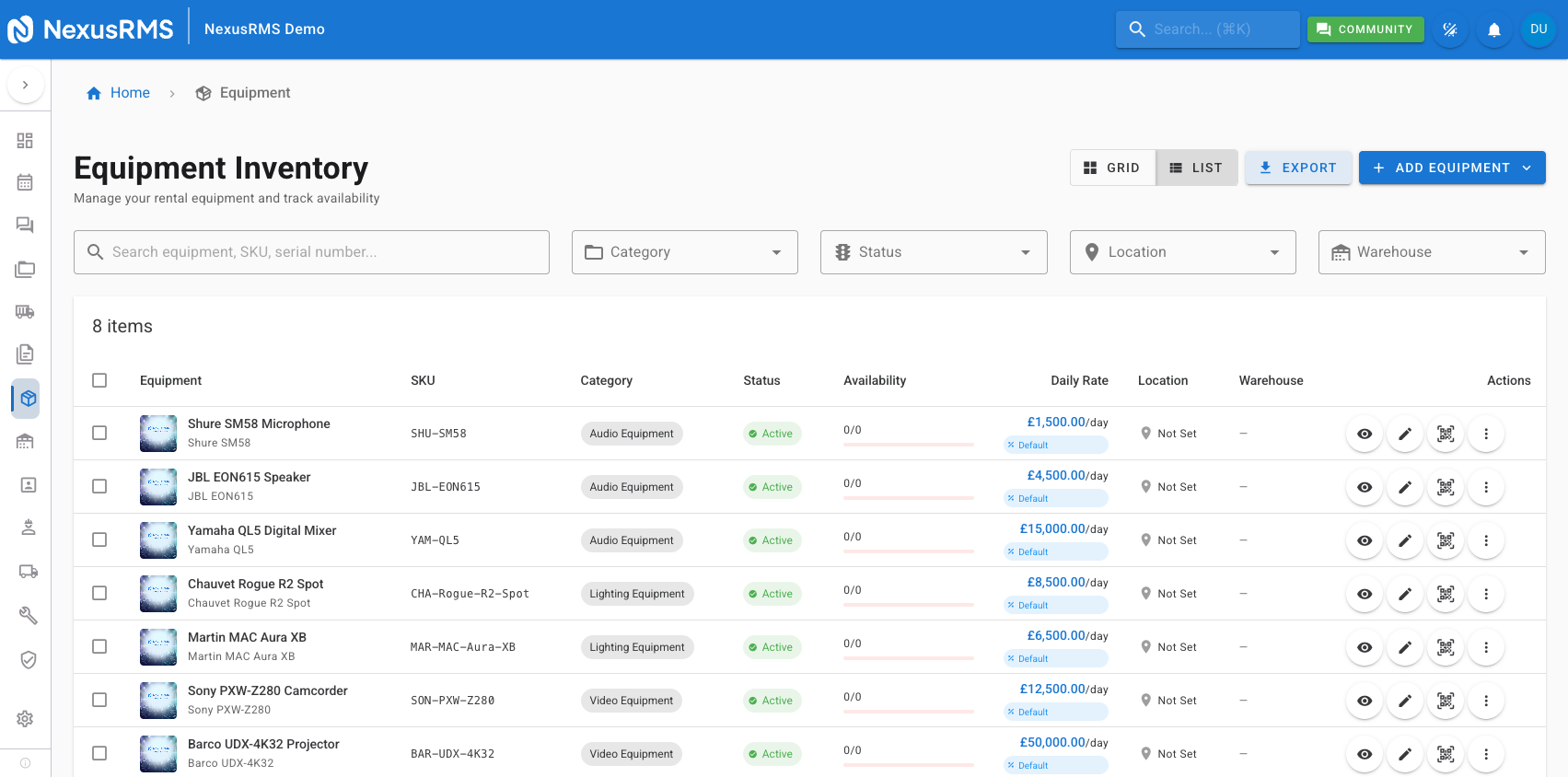
List view displays equipment in a data table with sortable columns. Columns include name, SKU, category, manufacturer, model, quantity, available count, condition, status, location, and daily rate. Each row has inline action buttons for View, Edit, and Delete. Click any column header to sort ascending or descending.
List view is best for data-heavy operations such as comparing pricing across items, reviewing stock levels in bulk, and exporting filtered datasets.
Search
The search bar at the top of the page performs full-text search across equipment name, SKU, and serial numbers. Results update as you type with a short debounce delay. Search works in both grid and list views and combines with any active filters.
Filters
Click the Filters button to expand the filter panel. Available filters include:
- Category — Select one or more categories from the hierarchical dropdown
- Status — Active, Inactive, Retired, Sold
- Location — Filter by specific warehouse, site, or vehicle
- Warehouse — Filter by warehouse (useful with the Multi-Warehouse addon)
- Condition — New, Excellent, Good, Fair, Poor, Damaged
- Availability date range — Show only items available during a specific date range
Active filters appear as dismissable chips below the filter panel. Click the × on any chip to remove that filter. Click Clear All to reset all filters at once.
Bulk operations
Select multiple items using the checkboxes (grid view) or row selectors (list view). A bulk operations bar appears at the top of the list showing the number of selected items and the following actions:
- Move to Location — Reassign all selected items to a different warehouse or storage location
- Add Tags — Apply one or more tags to all selected items
- Update Pricing — Adjust daily, weekly, or monthly rates by a fixed amount or percentage
- Export — Download selected items as CSV or Excel
- Delete — Remove selected items (confirmation dialog required)
Quick preview
Click the preview icon on any equipment card (grid view) or row (list view) to open a quick preview modal. The modal displays a summary of the item — image, name, SKU, availability, current location, and recent bookings — without navigating away from the list. Close the modal to return to your current position in the list.
Pagination
The Equipment List paginates results to maintain performance. Use the pagination controls at the bottom of the page to navigate between pages. You can also adjust the number of items displayed per page (25, 50, or 100).
Adding new equipment
Click the Add Equipment button in the top-right corner to open the equipment creation wizard. See the Creating Equipment article for full details on the multi-tab creation form.
Tips
- Use grid view for visual stock reviews — The colour-coded availability indicators make it easy to spot items that are running low or fully booked.
- Use list view for data-heavy operations — Sorting by daily rate, quantity, or condition helps you make informed pricing and procurement decisions.
- Combine search with filters — Search for a keyword and then apply category or location filters to narrow results quickly.
- Use bulk operations to update multiple items at once — Instead of editing items one by one, select a group and apply changes in a single action.
- Bookmark filtered views — Filter parameters are reflected in the URL, so you can bookmark a specific filtered view for quick access later.
Next steps
Continue to the next article to learn about creating equipment, including the multi-tab creation wizard, specification fields, stock management, pricing configuration, and image uploads.
Was this article helpful?