
Equipment Detail: Overview
The Equipment Detail page provides a complete view of a single equipment item. It opens with the Overview tab selected by default and offers a tabbed interface for accessing every aspect of the item — from pricing and serial numbers to maintenance history and insurance records. Tab data loads lazily when clicked, so the page stays fast even for items with extensive histories.
Page layout
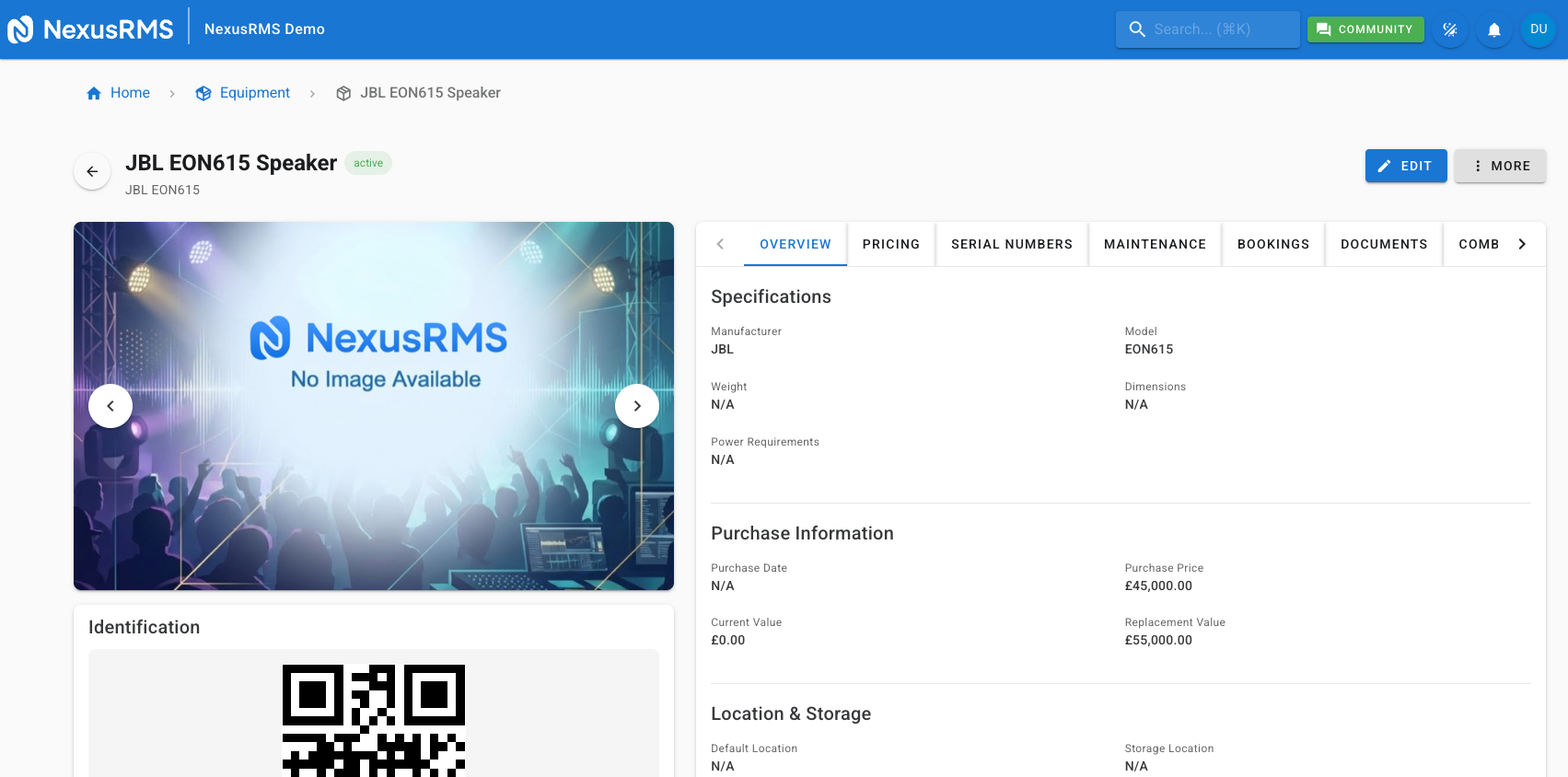
The detail page header displays the equipment name, SKU, and current status badge. A breadcrumb trail at the top provides quick navigation back to the Equipment List or the item's category. The header also includes action buttons for Edit, Duplicate, Print QR Label, and a More Actions menu with options to archive, retire, or delete the item.
Overview tab
The Overview tab is the default landing view and presents a summary of the most important information about the equipment item.
Image carousel
The left side of the Overview tab displays an image carousel with thumbnail navigation below it. Click any thumbnail to view the full-size image. If no images have been uploaded, a placeholder icon is shown. The QR code for the item is displayed below the image carousel and can be clicked to download or print.
Basic specifications
The right side displays key specifications in a structured layout:
- Category — The full category path (e.g., Audio > Speakers > Active Speakers)
- Manufacturer and Model
- SKU and Barcode Format
- Tracking Method — Bulk or Serialized
- Weight and Dimensions
- Condition — Displayed as a colour-coded badge (green for New/Excellent, blue for Good, yellow for Fair, orange for Poor, red for Damaged)
- Status — Active, Inactive, Retired, or Sold
- Default Location — Warehouse name and storage position
Availability breakdown
Below the specifications, the availability section shows the current stock distribution across all states:
- Available — Units ready for booking (green)
- Rented — Units currently out on hire (blue)
- In Maintenance — Units undergoing repair or servicing (yellow)
- Damaged — Units flagged as damaged and not available for hire (orange)
- Lost — Units marked as lost or missing (red)
Each state shows a count and a horizontal bar representing its proportion of total stock. The total count is displayed alongside the breakdown for quick reference.
Multi-warehouse distribution
If you use the Multi-Warehouse addon, a distribution section appears showing how many units of this item are stored at each warehouse location. Each warehouse row displays the warehouse name, available count, and total count. This helps you identify where stock is concentrated and whether any locations need replenishment.
Recent activity
The recent activity section shows the last 5 changes made to this equipment item as an audit trail. Each entry displays the action taken (e.g., "Status changed to In Maintenance"), the user who made the change, and the date and time. Click View Full History to open the History tab with the complete audit log.
Available tabs
The Equipment Detail page includes the following tabs. Each tab loads its data when first clicked rather than loading everything upfront:
- Overview — Image carousel, specifications, availability breakdown, and recent activity (described above)
- Pricing — Rental rates, purchase information, depreciation, and factor group assignment
- Serial Numbers — List of all serialized units with individual condition, status, and location (serialized items only)
- Maintenance — Scheduled and completed maintenance records, repair history, and service logs
- PAT Testing — PAT test records, next test due date, and compliance status (requires PAT Testing addon)
- Bookings — Past and upcoming project bookings that include this equipment item
- Documents — Uploaded manuals, spec sheets, safety data sheets, and certificates
- Combinations — Kits and bundles that include this item
- Accessories — Linked accessory items
- Alternatives — Linked substitute items
- Insurance — Warranty and insurance coverage details
- History — Full audit trail of every change made to this item since creation
Quick actions
The following quick actions are available from the detail page header or the More Actions menu:
- Edit — Opens the edit form with all tabs pre-populated
- Duplicate — Creates a copy of this item with a new SKU and serial numbers
- Print QR Label — Generates a printable QR code label for this item
- Add to Project — Opens a dialog to select a project and add this item directly
- Send for Repair — Changes the status to In Maintenance and creates a repair record
- Mark as Retired — Sets the item status to Retired, removing it from availability calculations
- Delete — Permanently removes the item (requires confirmation, blocked if item has active bookings)
Tips
- Check availability before quoting — Use the availability breakdown to confirm stock levels before adding items to a new project quote.
- Review recent activity regularly — The audit trail helps you catch unexpected changes such as items being moved or conditions being updated.
- Use the Bookings tab to spot high-demand items — Items with frequent bookings may need additional stock or should be priced at a premium.
- Keep documents up to date — Upload the latest manuals and safety sheets so your crew always has access to current information.
Next steps
Continue to the next article to learn about equipment pricing and rental rates, including pricing strategies, factor groups, depreciation, and how rates appear on quotes and invoices.
Was this article helpful?