
Setting Up Your Profile
## Setting Up Your Profile
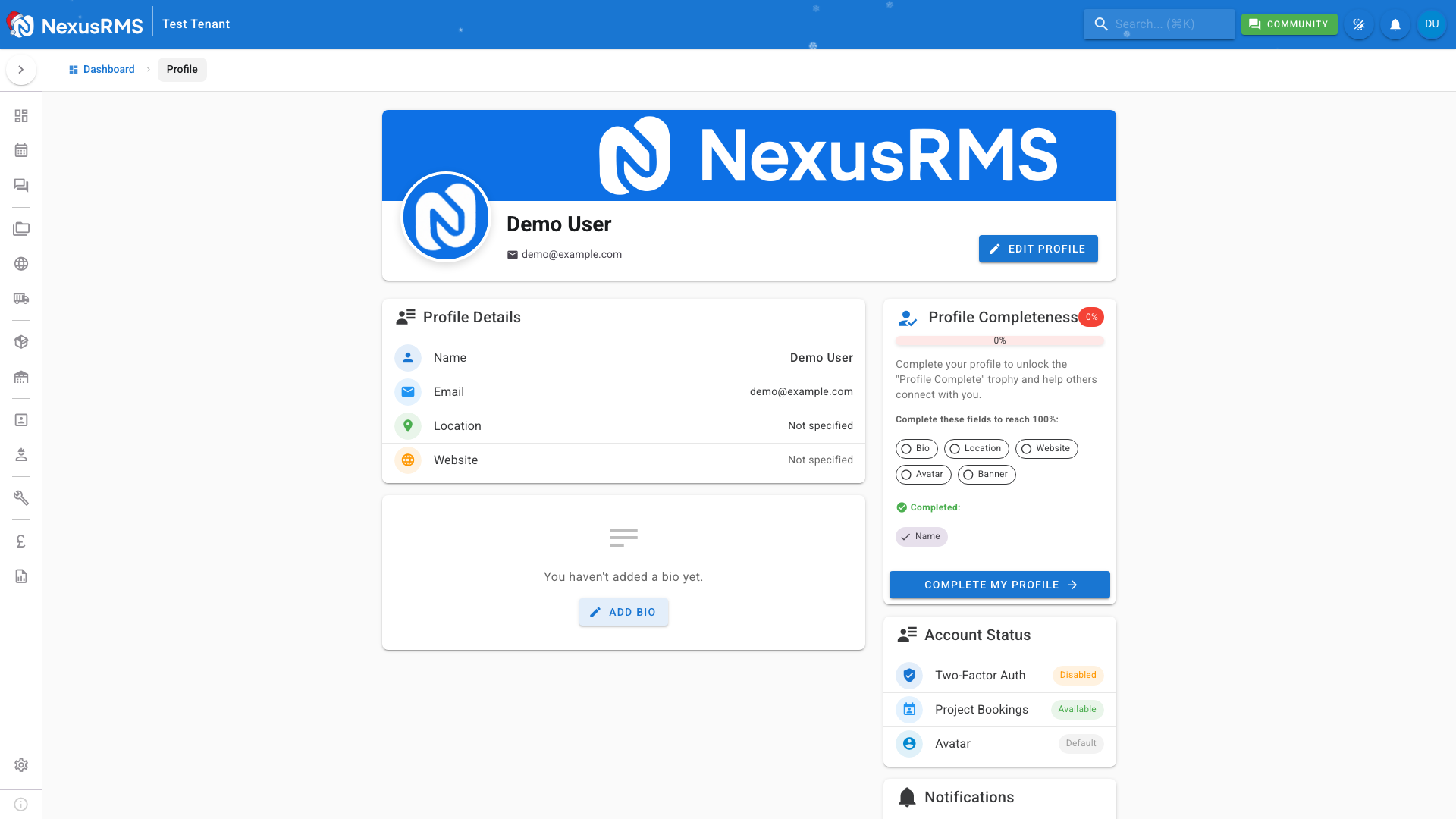
Your profile page is where you manage your personal settings, security options, and notification preferences.
### Accessing Your Profile
1. Click your avatar or name in the top-right corner
2. Select **Profile** from the dropdown menu
3. Or navigate directly to `/profile`
### Personal Information
Update your basic details:
- **Name** - Your display name shown throughout the system
- **Email** - Your login email and notification address
- **Phone** - Contact number for SMS notifications (if enabled)
- **Avatar** - Upload a profile picture
### Password Management
To change your password:
1. Go to the Security section
2. Enter your current password
3. Enter and confirm your new password
4. Click Save
Password requirements:
- Minimum 8 characters
- Mix of uppercase and lowercase
- Include numbers or symbols
### Two-Factor Authentication
Enable MFA for enhanced security:
1. Click **Enable Two-Factor Authentication**
2. Scan the QR code with your authenticator app
3. Enter the verification code
4. Save your recovery codes securely
**Important**: Store recovery codes safely. They're your backup if you lose access to your authenticator app.
### Notification Preferences
Control how and when you receive notifications:
**Email Notifications**
- Project updates
- Invoice payments
- Maintenance reminders
- System announcements
**Push Notifications** (if enabled)
- Real-time alerts
- Urgent items
- Assignment notifications
**Digest Settings**
- Immediate notifications
- Daily digest
- Weekly summary
### Session Management
View and manage your active sessions:
- See devices currently logged in
- Revoke access from unknown devices
- Log out from all devices
Was this article helpful?