
Using NexusRMS on Mobile
## Using NexusRMS on Mobile
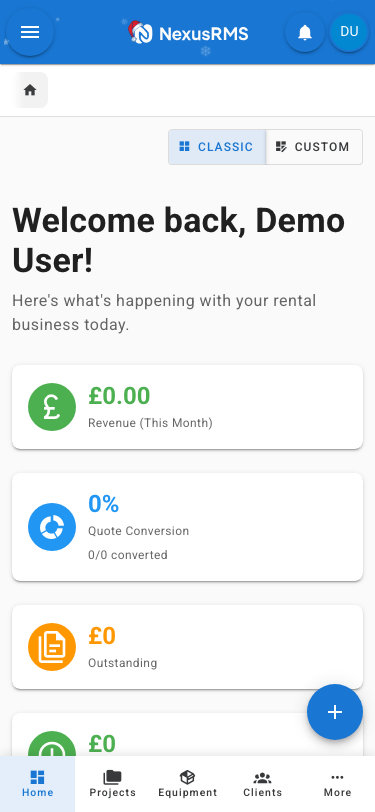
NexusRMS is fully responsive and works beautifully on mobile devices. You can manage your rental business from anywhere.
### Mobile Access
Access NexusRMS on mobile by:
1. Opening your browser (Safari, Chrome, etc.)
2. Navigate to your company URL
3. Log in as normal
The interface automatically adapts to your screen size.
### Installing as an App (PWA)
For the best mobile experience, install NexusRMS as a Progressive Web App:
**On iPhone/iPad:**
1. Open NexusRMS in Safari
2. Tap the Share button
3. Scroll down and tap "Add to Home Screen"
4. Name it and tap "Add"
**On Android:**
1. Open NexusRMS in Chrome
2. Tap the menu (three dots)
3. Tap "Install app" or "Add to Home Screen"
4. Confirm installation
Once installed, NexusRMS appears as an app icon and launches in full screen.
### Mobile Navigation
On mobile devices:
- Tap the **hamburger menu** (☰) to open navigation
- Use **swipe gestures** where supported
- Access **quick actions** via the floating action button
### Mobile-Optimized Features
**Equipment Scanner**
Use your phone's camera to scan QR codes and barcodes for quick equipment lookup.
**Time Clock**
Crew members can clock in/out with GPS location tracking.
**Offline Mode**
View recently accessed data even without connection. Changes sync when back online.
**Push Notifications**
Receive real-time alerts for:
- New project assignments
- Quote approvals
- Payment confirmations
- Urgent messages
### Tips for Mobile Use
- Use the search (tap magnifying glass) for quick access
- Bookmark frequently used pages
- Enable notifications for important updates
- Keep the app updated for best performance
Was this article helpful?