
Navigating NexusRMS
## Navigating NexusRMS
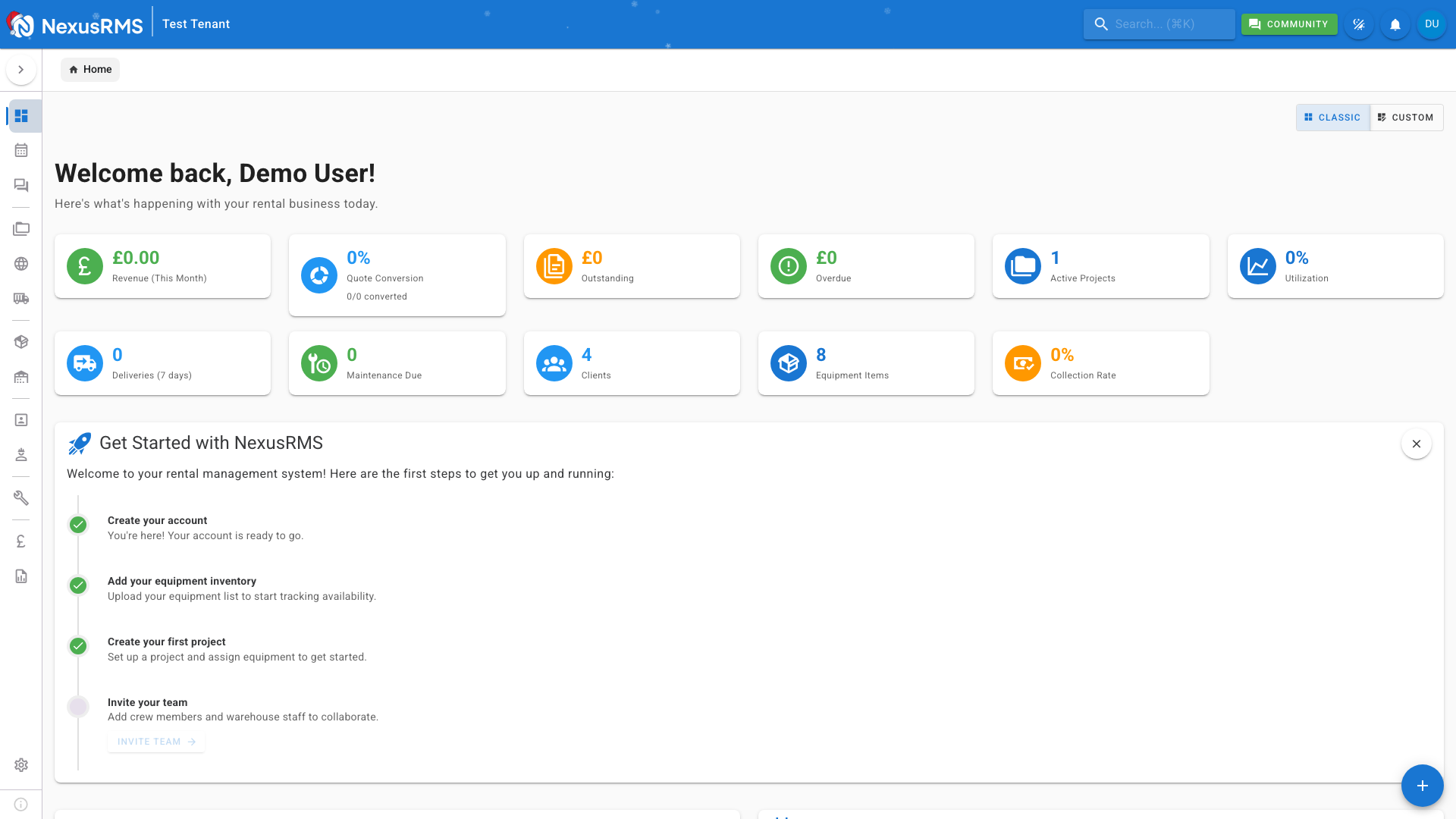
NexusRMS uses a clear, intuitive navigation system that helps you move between modules quickly and efficiently.
### Sidebar Navigation
The left sidebar is your primary navigation tool. It's organized into logical groups:
**Core Modules**
- **Dashboard** - Your home base with key metrics
- **Equipment** - Manage your rental inventory
- **Projects** - Handle bookings and rentals
- **Clients** - Customer relationship management
- **Calendar** - Visual scheduling view
**Financial**
- **Quotes** - Create and manage quotations
- **Invoices** - Billing and payment tracking
- **Payments** - Payment processing and history
**Operations**
- **Warehouse** - Check-in/out and packing
- **Crew** - Team scheduling and time tracking
- **Repairs** - Maintenance and service
**Configuration**
- **Settings** - System configuration
- **Users** - Team management
- **Integrations** - Third-party connections
### Collapsing the Sidebar
On desktop, hover over the sidebar to expand it. It automatically collapses to save screen space when you move away.
On mobile, tap the hamburger menu (☰) in the top-left to open the navigation drawer.
### Top App Bar
The top bar provides:
- **Logo** - Click to return to Dashboard
- **Company Name** - Your tenant identifier
- **Search** - Global search (Cmd+K / Ctrl+K)
- **Community** - Link to community forums
- **Theme** - Switch between light/dark modes
- **Notifications** - Bell icon shows alerts
- **Profile** - Access your account settings
### Breadcrumbs
Below the top bar, breadcrumbs show your current location:
`Dashboard > Projects > Summer Festival 2025`
Click any breadcrumb to navigate back to that level.
### Keyboard Shortcuts
Power users can navigate faster with keyboard shortcuts:
- **Cmd+K / Ctrl+K** - Open global search
- **Escape** - Close dialogs and modals
- **?** - Show keyboard shortcuts (when available)
Was this article helpful?